Get Started Free



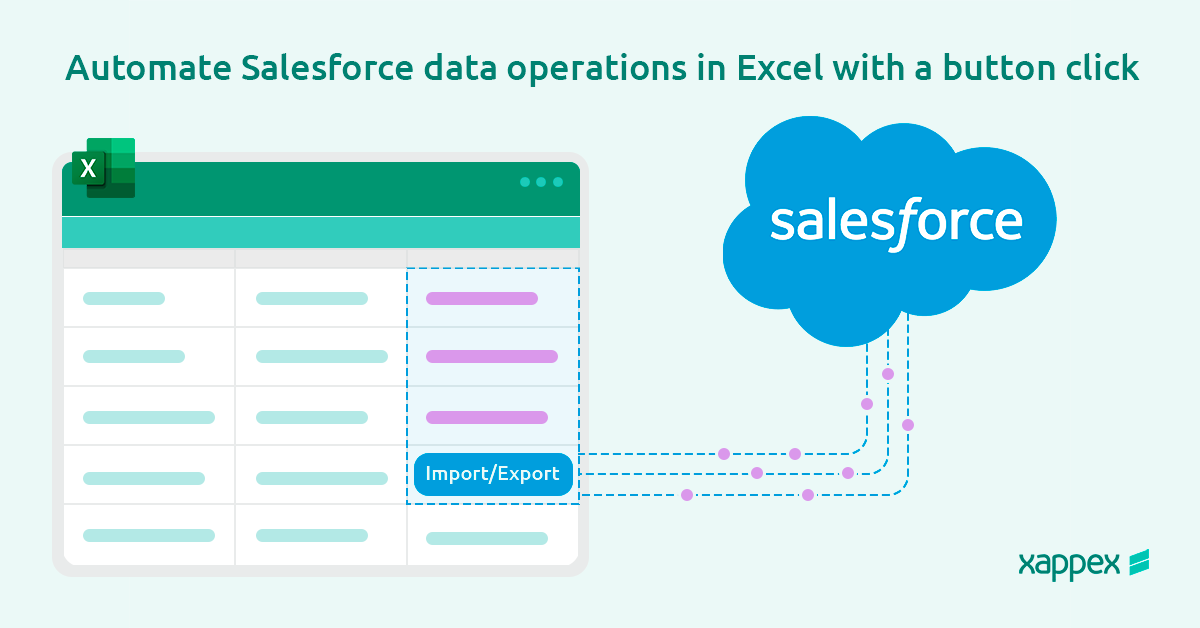
The ability to manage and automate Salesforce data directly from Excel is a game-changer integration that many admins consider indispensable for their daily data tasks.
We are excited to unveil a groundbreaking feature in Xappex XL-Connector 365 that simplifies Salesforce data operations at the click of a button, elevating this synergy to a whole new level.
How does Salesforce automation work with XL-Connector 365?
XL-Connector 365 allows to run and automate data operations in Excel such as pulling Salesforce reports, running queries, mass importing data, converting leads, etc. The sequences of these automations are called Flows and can be normally executed using XL-Connector 365 user interface.
The latest update of XL-Connector 365 includes the option to turn any Excel cell or range into a clickable button that will run any sequence of operations defined for a spreadsheet.
Benefits of Using Custom Buttons with XL-Connector 365
- Increased Efficiency: Automating data refreshes and uploads through a button minimizes the manual intervention required to sync data between Excel and Salesforce.
- Ease of Use: A clickable button simplifies the workflow, allowing users to perform critical data operations without navigating complex menus.
- Customization: You can configure multiple buttons for different actions, allowing you to use XL-Connector 365 more tailored and flexible in your daily tasks.
How to Create a Clickable Button in Excel with XL-Connector 365?
Let’s walk through an example where you must pull a list of Opportunities created in the last seven days. Instead of manually querying the data each week, we will set up a clickable button in Excel to automatically refresh this data using XL-Connector 365.
-
Step1: Install and Set Up XL-Connector 365
Begin by installing XL-Connector 365 from the Microsoft AppSource. Once installed, you must authenticate with your Salesforce credentials to establish a secure connection between Excel and your Salesforce environment.
-
Step 2: Use SOQL Query to Retrieve Weekly Data
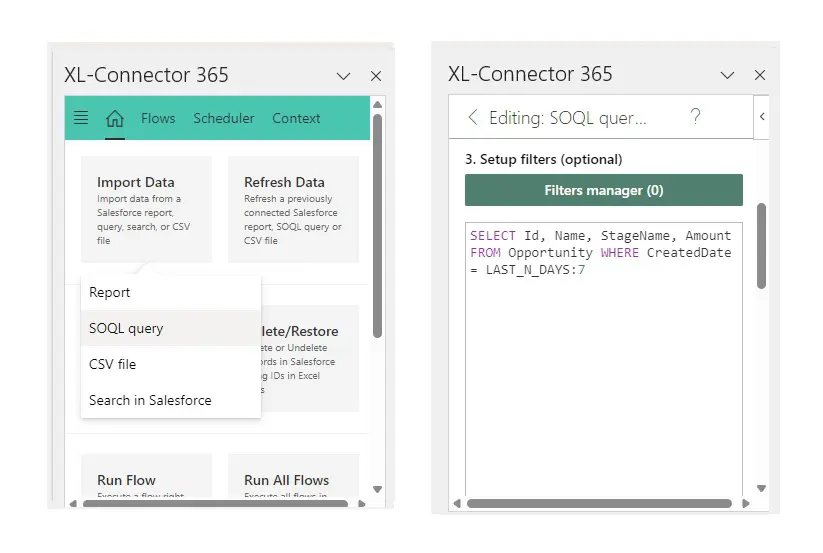
Open XL-Connector 365 from the Home ribbon in Excel and select the SOQL Query option from the Import data menu.
Write a SOQL query to retrieve opportunities created in the last seven days:
SELECT Id, Name, Amount, CloseDate, StageName FROM Opportunity WHERE CreatedDate = LAST_N_DAYS:7
Execute the query to retrieve the data from Salesforce and put it into your workbook in a new sheet.

-
Step 3: Define a Button to Run the Pull Data Flow
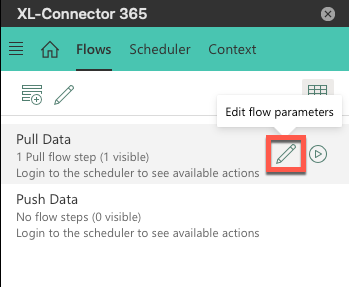
By default, all data export operations are saved in the Pull Data flow. To access that flow, go to the Flows tab in XL-Connector 365, you’ll see the flow in the top portion of the screen. Click on a little pencil on the flow to edit it’s settings:
Under the Run Button group, you’ll find controls to create a clickable button that will run this flow. To create the button, select the Excel range you want to place the button at and click on the crosshair icon (see below). Alternatively, you can manually enter the range address (or name) in the edit box:
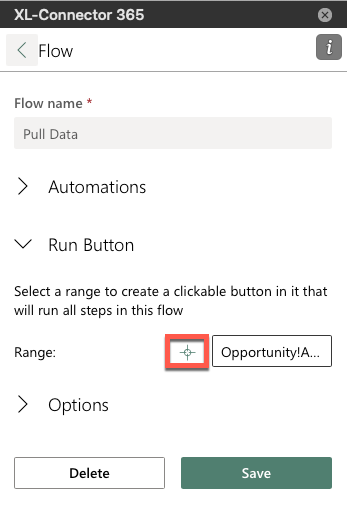
Click on Save to create the button.
-
Step 4: Test the Button
Click the button to test the flow. XL-Connector 365 should automatically refresh the data in your Excel sheet, pulling the latest opportunities created in the last seven days.
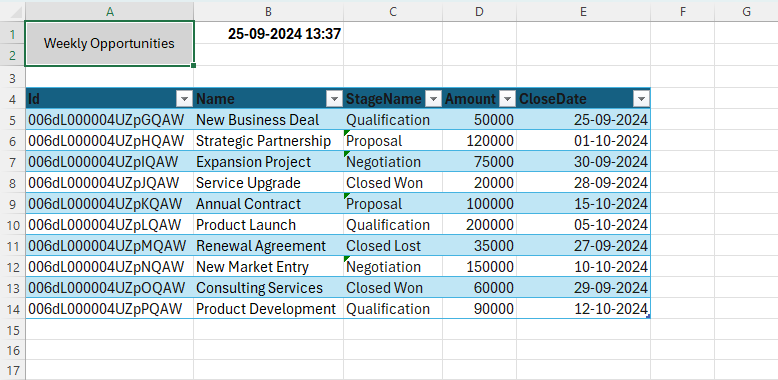
Save the Excel file, which now includes an automated button for future use.
Conclusion
XL-Connector 365 lets Salesforce users manage data directly from Excel with a few clicks. By creating buttons to refresh or upload data in bulk, we can automate routine updates or inserts and handle large datasets more efficiently.
This approach ensures teams have the latest information without manually running queries, which greatly improves the process of data management. It’s also ideal for users unfamiliar with SOQL or complex programming, enabling them to manage data independently.

Start a 14-day free trial of XL-Connector 365 and see an immediate productivity boost in your data management!

Rajeshwari Jain
Content Manager
Rajeshwari Jain is a Technical Support Specialist and Content Writer at Xappex. She applies her practical experience to assist customers and create articles on how Xappex tools work with Salesforce to improve data management and increase efficiency.
She began her IT career in 2022 as a Quality Assurance professional before transitioning into Salesforce administration and technical writing in 2023. With Salesforce Certified Administrator and Associate certifications, Rajeshwari writes blogs on Salesforce flows, admin tools, and updates to expand her skills outside of work.
In her free time, she enjoys reading tech blogs and experimenting with new tools.
Feel free to reach out to Rajeshwari for collaborations or to check out her Salesforce-focused content.