Get Started Free



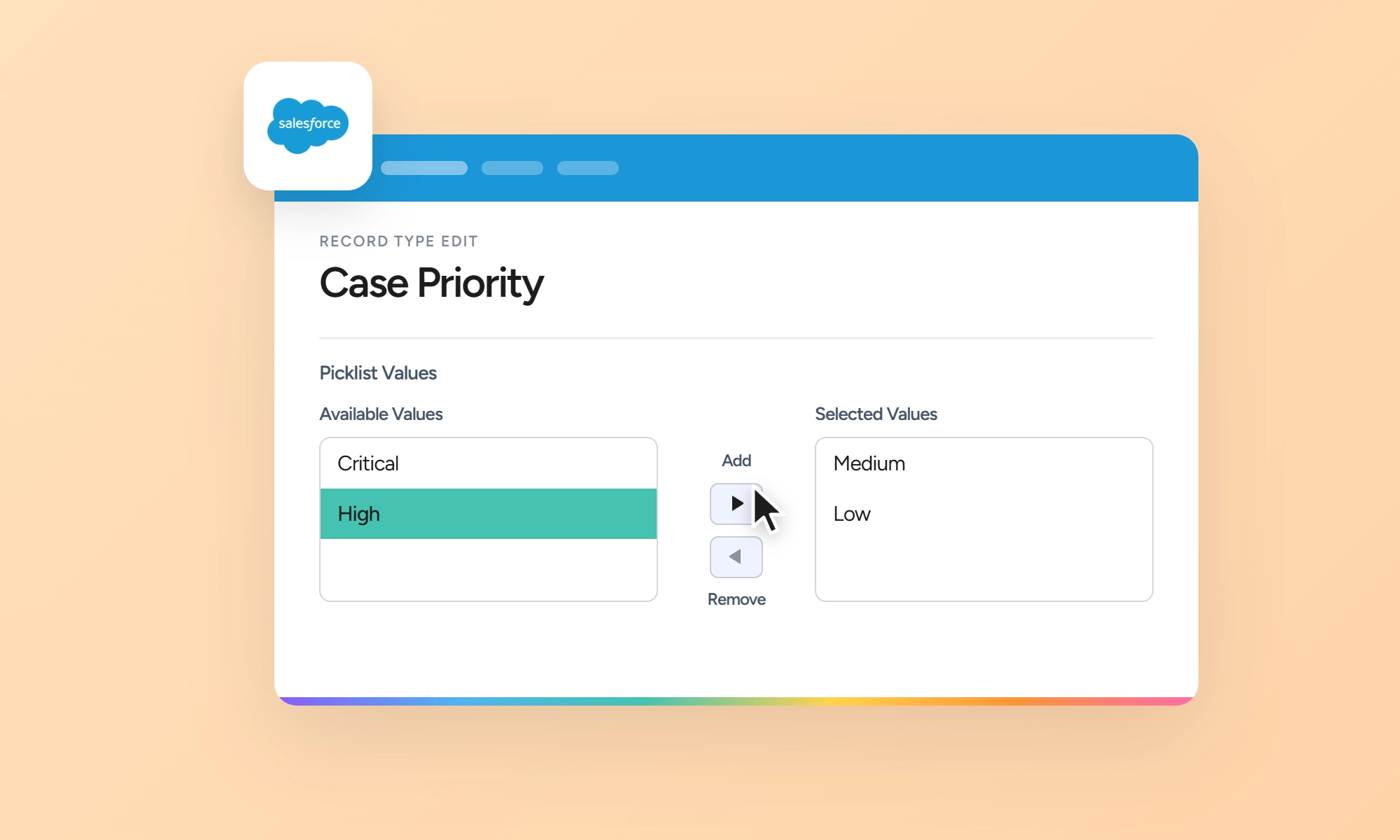
To add picklist values to a record type in Salesforce, go to Setup → Object Manager, select the object, and open Record Types. Select the record type, find the picklist under Picklists Available for Editing, click Edit, move the required values to Selected Values, and save.
How Picklist Values and Record Types Work Together
Picklist values belong to the field. A record type determines which of those values are available for records that use that record type. If you already have a record type set up, you can change its available picklist values without changing the field’s master list. Lead Status, Case Status, Solution Status, and Opportunity Stage use business processes associated with record types to control their available values; see the section on business processes below.
Two Ways to Add a Picklist Value
If the Value Doesn't Exist Yet
-
1
Go to Setup → Object Manager, select the object, then open Fields & Relationships and click the picklist field name.
-
2
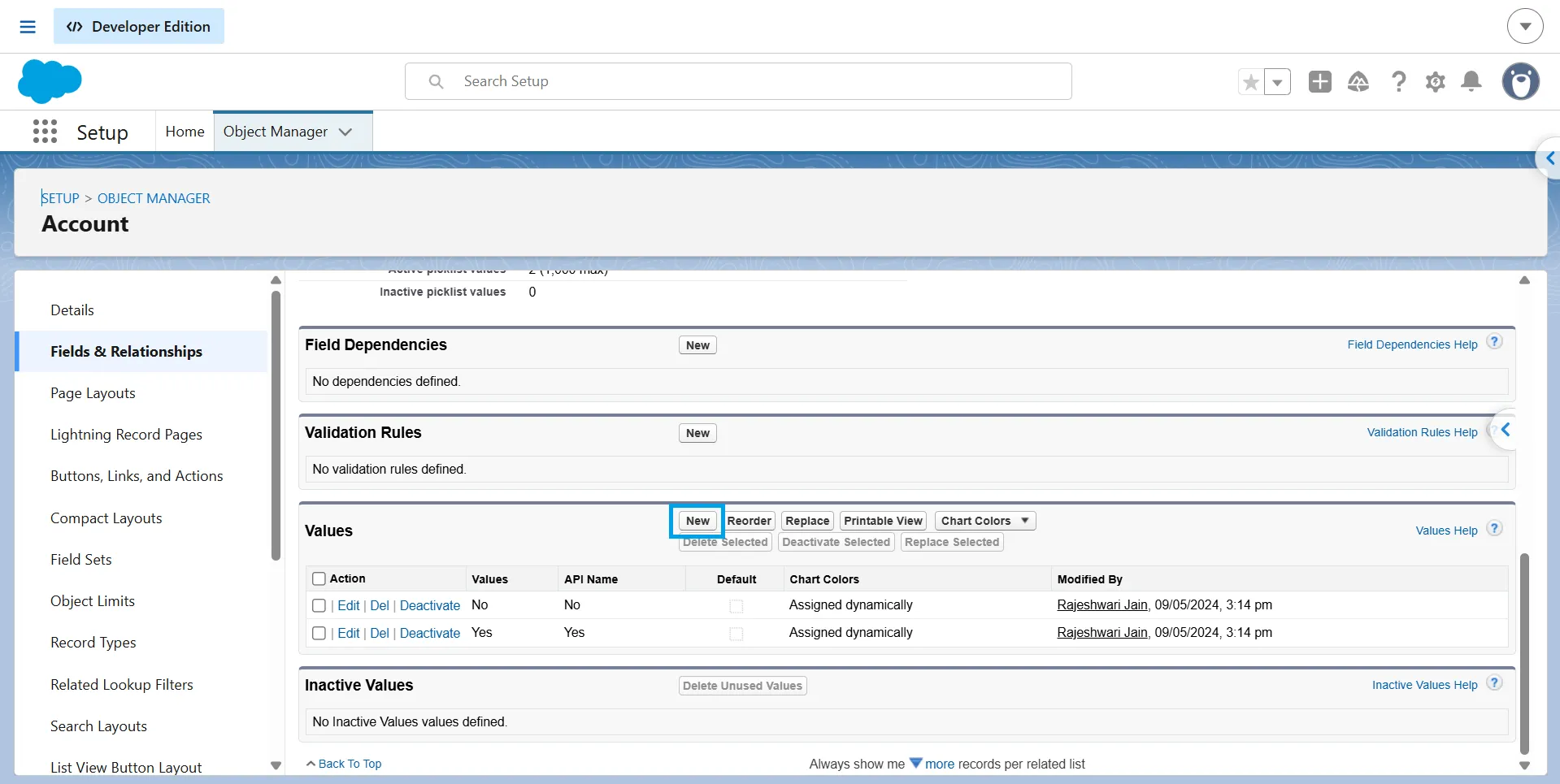
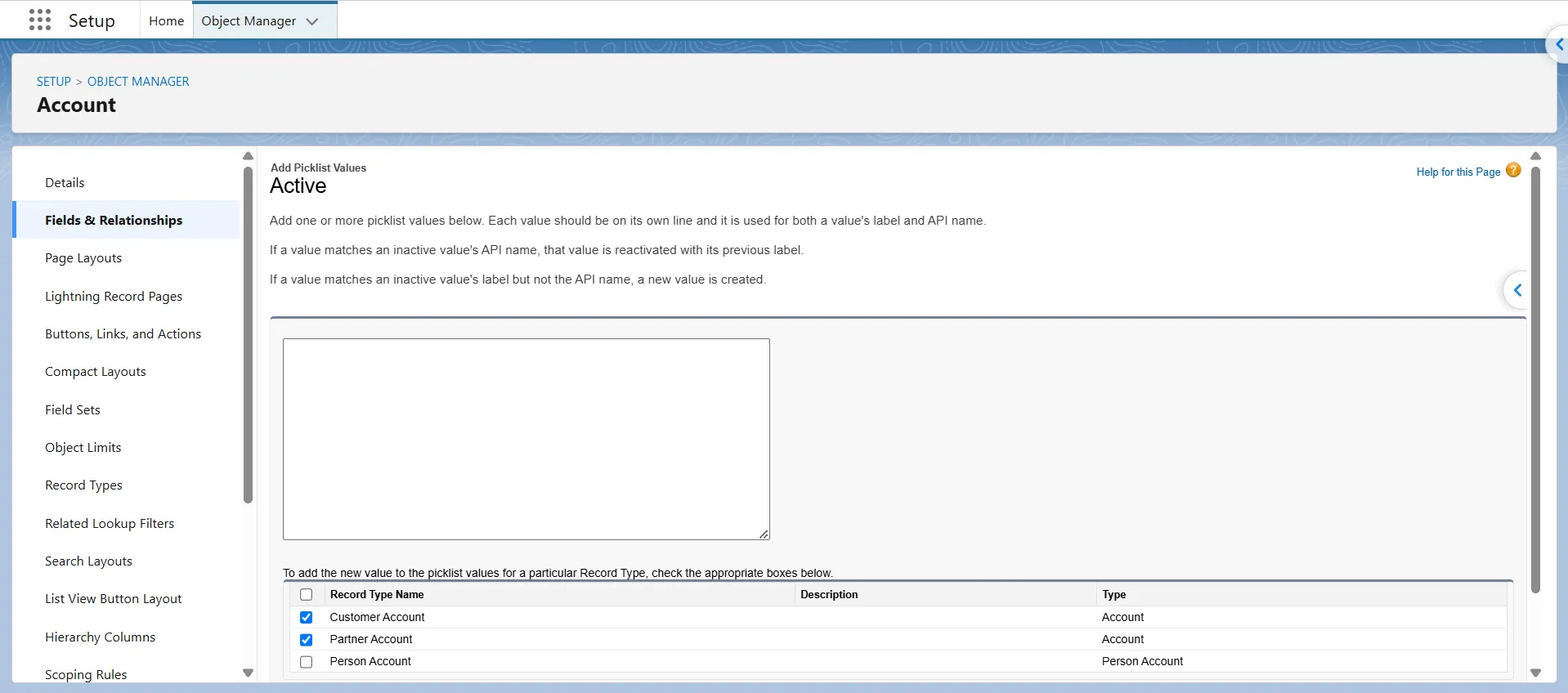
Under Values, click New, enter the value or values, and on the same screen select the checkbox for each record type that should use the new value.

-
3
Clicking New opens the Add Picklist Values screen, where you can enter the value and choose which record types should use it.
-
4
Click Save.
If the Value Already Exists but Isn't Assigned
-
1
Go to Setup → Object Manager, select the object, open Record Types, and click the record type label.
-
2
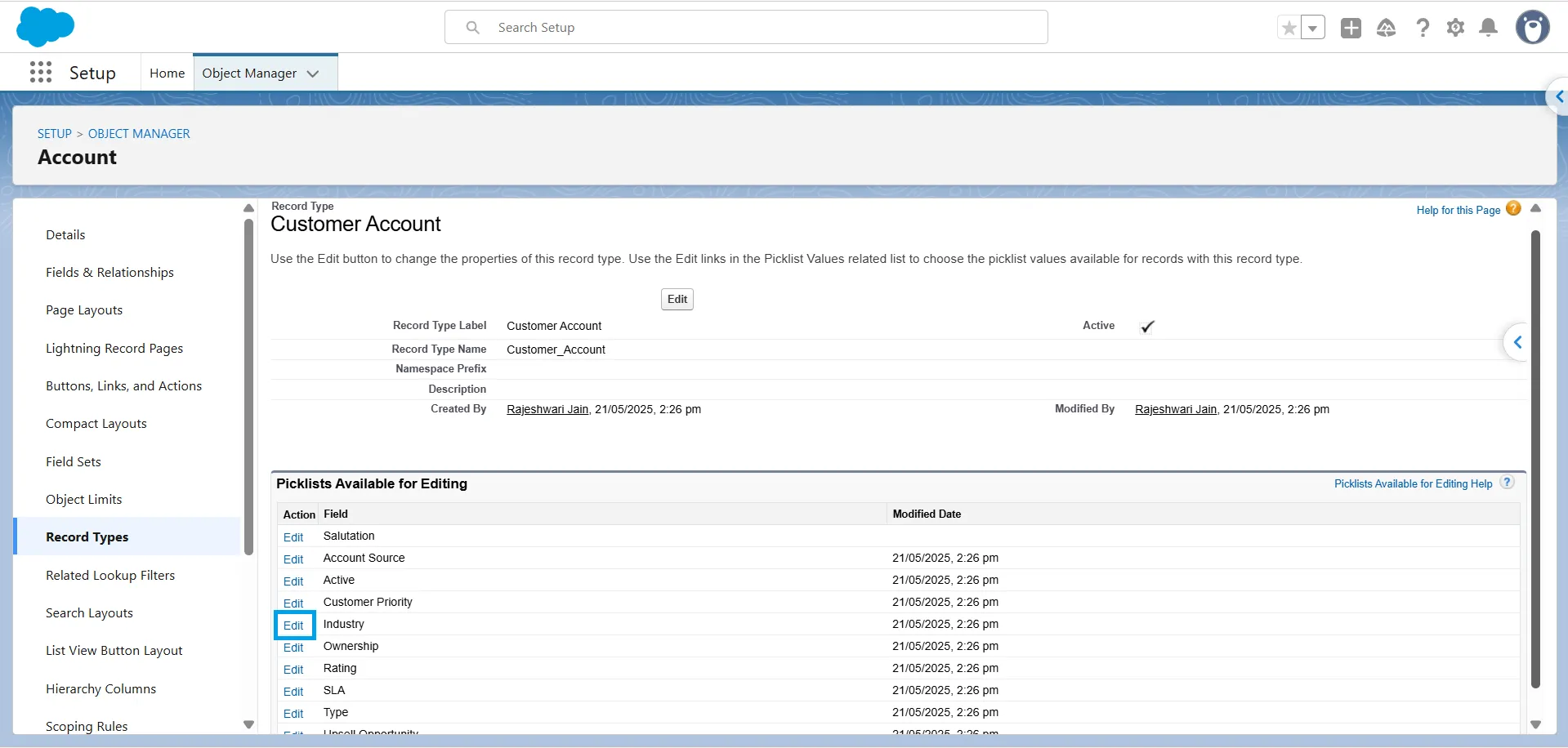
Under Picklists Available for Editing, find the picklist field and click Edit.
-
3
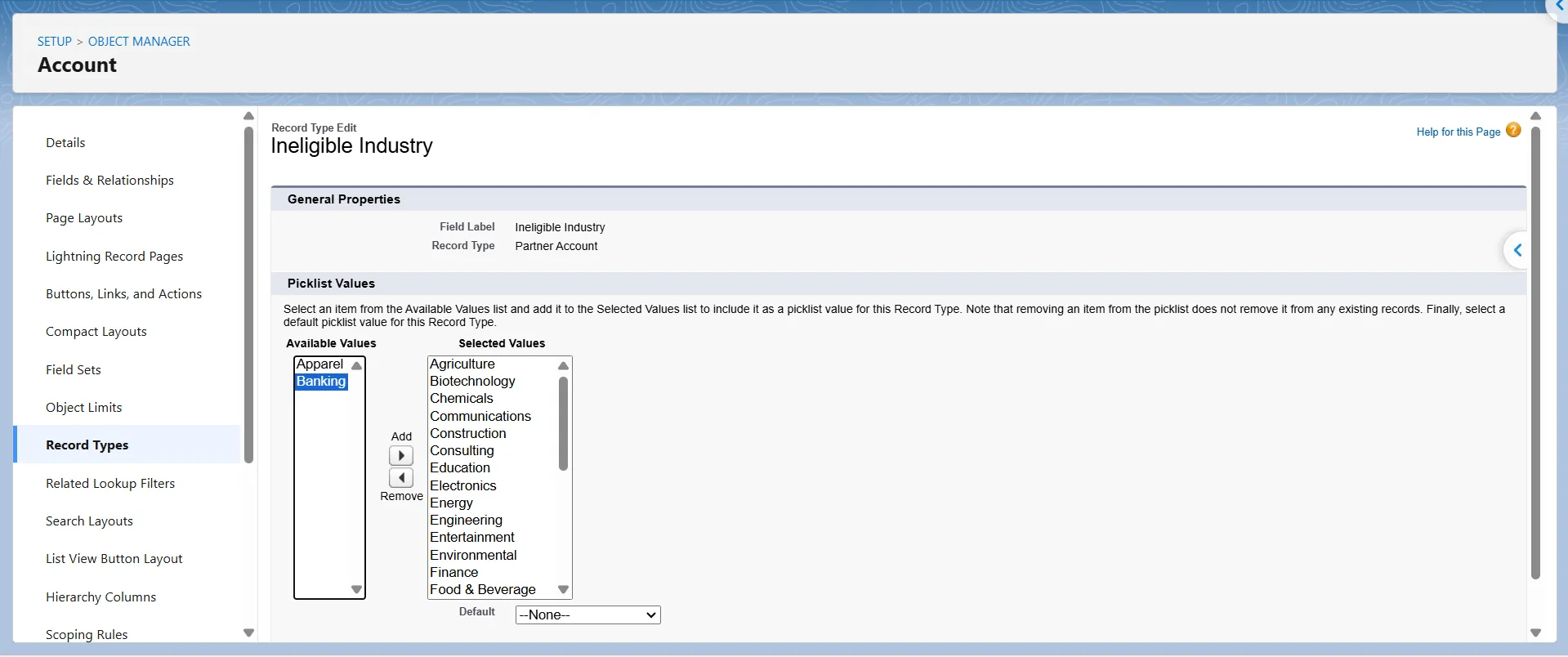
Move the value from Available Values to Selected Values. Choose a Default value if required, then click Save.

Note
If you selected the record type but the value still doesn’t appear on Lead, Case, Opportunity, or Solution, the issue is likely related to the business process rather than the record type. See “Why the Value Might Still Not Show Up” below.
Why the Value Might Still Not Show Up
If you added the value, saved the changes, and still can’t see it, work through these causes in order.
The value isn't enabled for the record type
Picklist values can be assigned to specific record types. Go to Setup → Object Manager → [Object] → Record Types → [Record Type] and edit the picklist to move the value to the Selected Values list. Also confirm that the record you’re viewing uses the expected record type.
The user doesn't have access to the record type
First, check that the record type is active. Deactivating a record type prevents users from creating new records with it, even if it remains assigned.
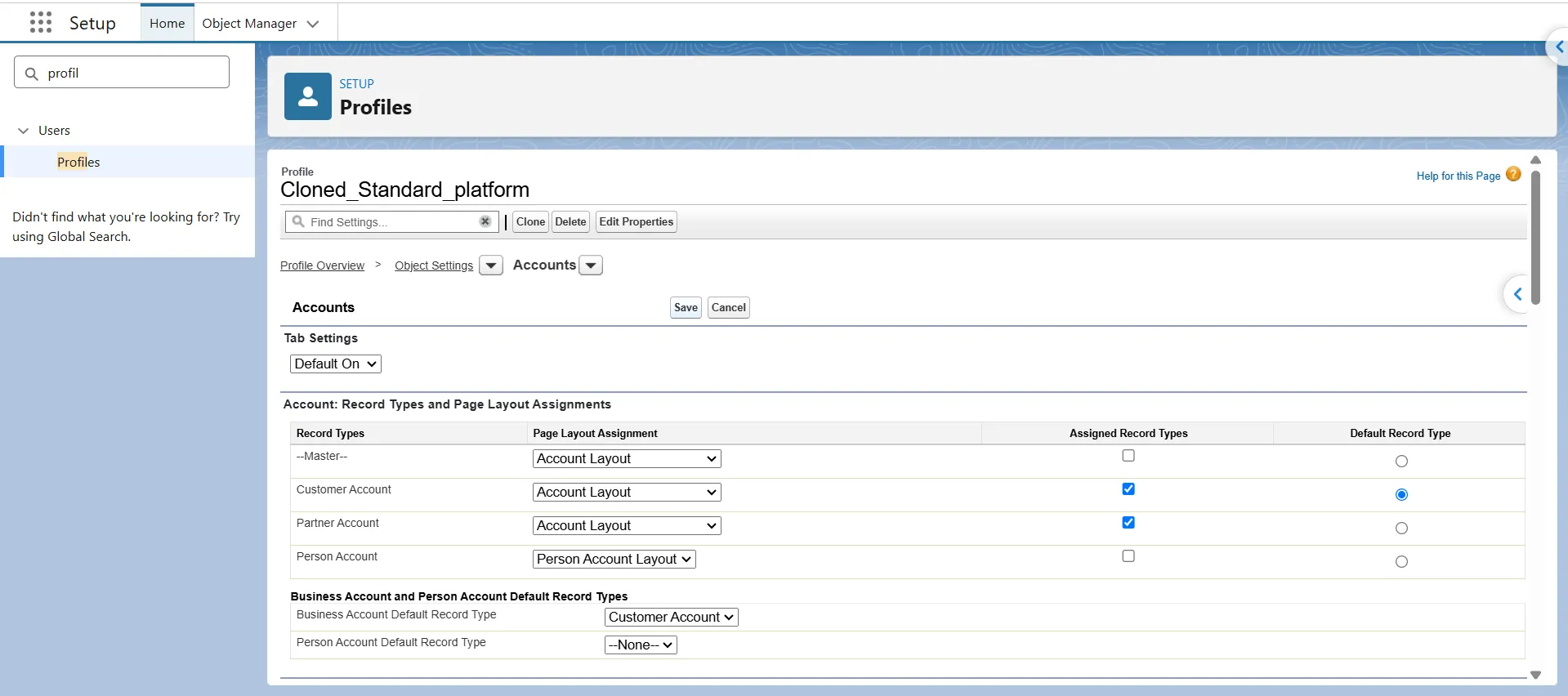
For a profile, go to Setup → Users → Profiles → [Profile]. Depending on your profile interface, open the object’s settings and click Edit, or find the Record Type Settings section and click Edit next to the object. Make sure the required record type is assigned.
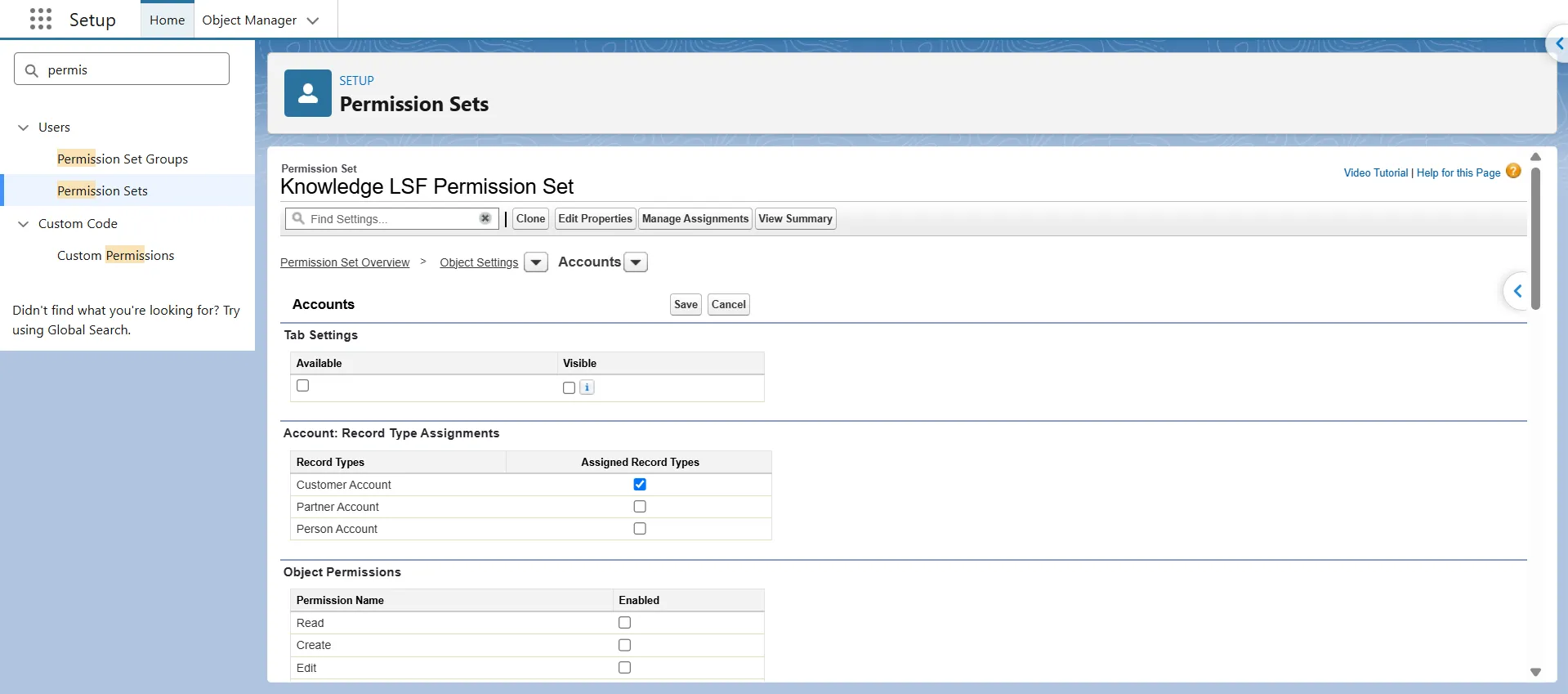
For a permission set, go to Setup → Users → Permission Sets → [Permission Set] → Object Settings → [Object] → Edit. Select the custom record types you want to assign and save the changes. Permission sets can assign record types, but they can’t set a user’s default record type; that is configured in the profile.
The field is hidden by field-level security
If Field-Level Security hides the field, the user can’t see it. If FLS gives the user read-only access, they can see the field but can’t edit it. Check Setup → Object Manager → [Object] → Fields & Relationships → [Field] → Set Field-Level Security and verify the user’s access.
It's a Status or Stage field
Four standard fields are controlled through business processes: Lead Status, Case Status, Solution Status, and Opportunity Stage. Add the value to the relevant Lead Process, Support Process, Solution Process, or Sales Process, then confirm that the process is assigned to the record type.
A field dependency is filtering it out
If the picklist is a dependent field, adding a new value to the picklist alone won’t make it available. You also need to add the value to the field dependency for each controlling value where users should be able to select it.
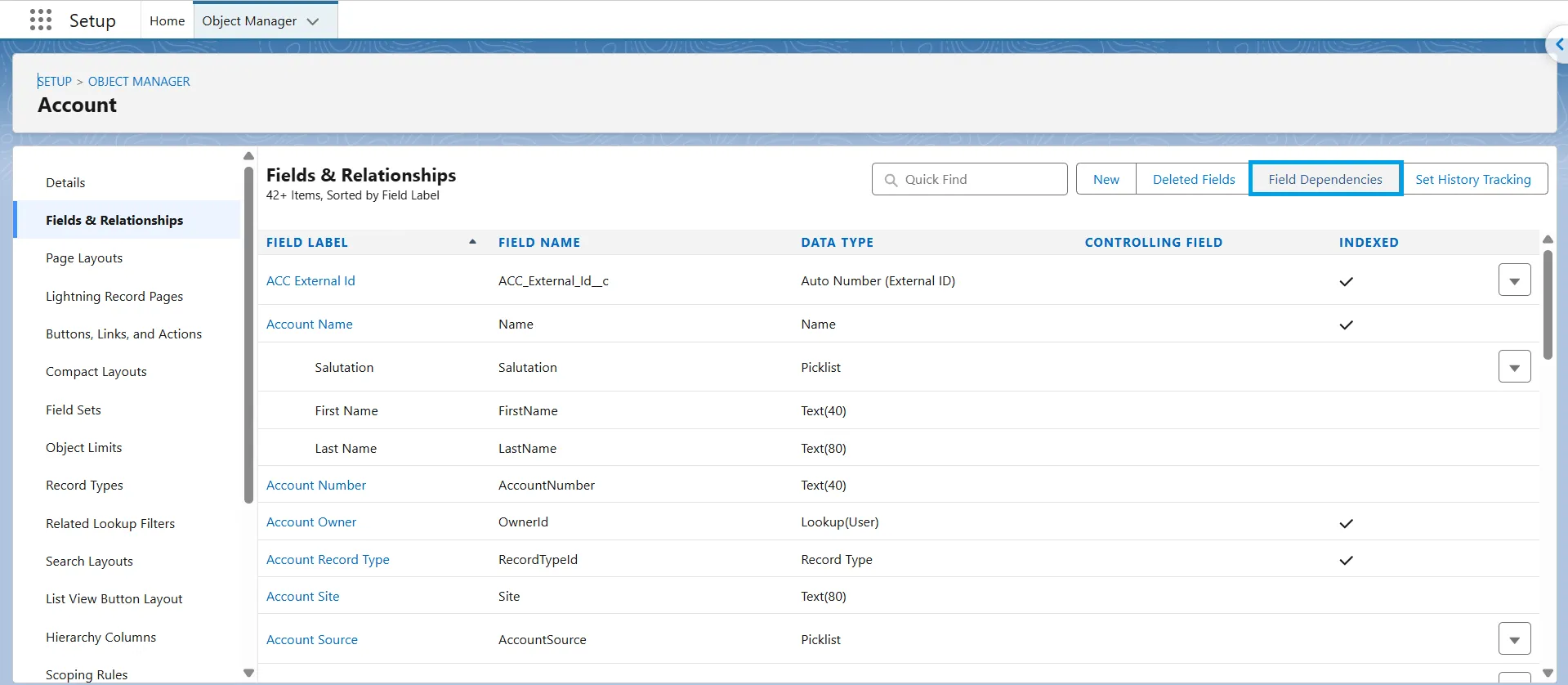
Go to Setup → Object Manager → [Object] → Fields & Relationships → Field Dependencies.
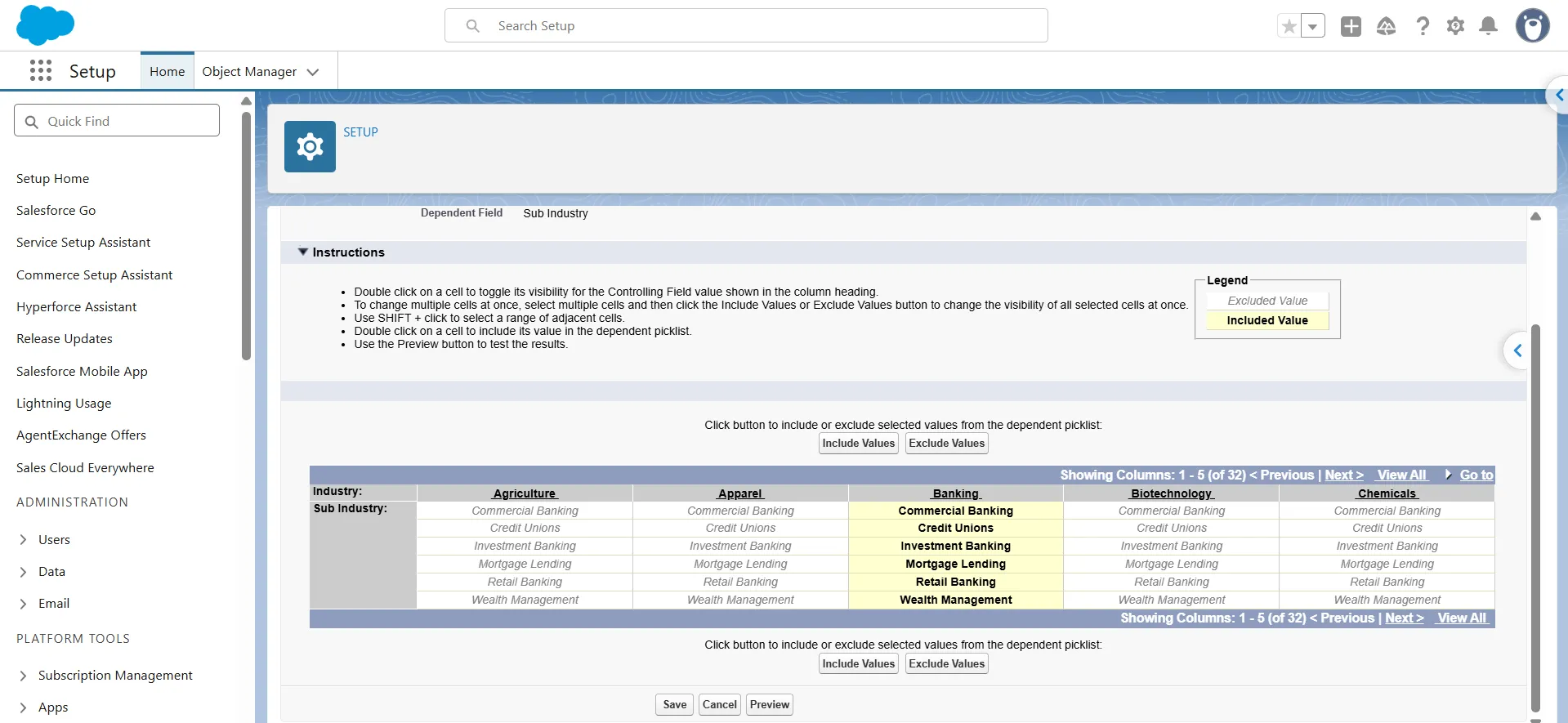
Find the dependency and click Edit. In the dependency matrix, the column headers are the controlling-field values, and the values listed under each column are the dependent picklist values. Select the new value under each controlling value where it should appear, then click Include Values. Use Ctrl+click to select multiple values or Shift+click to select a range. Click Preview to check the dependency, then click Save.
The value belongs to a value set, not the field
Some picklists get their values from a shared value set rather than from the field itself.
- Global value sets: For a custom picklist that uses a global value set, go to Setup → Picklist Value Sets and edit the value set. Changes apply to the custom picklists that use it.
- Standard value sets: Some standard picklists share a standard value set. For example, Lead Source on Lead and Account Source on Account share the same standard value set. You manage these values through the picklist settings for the relevant standard field, such as Setup → Object Manager → Account → Fields & Relationships → Account Source.
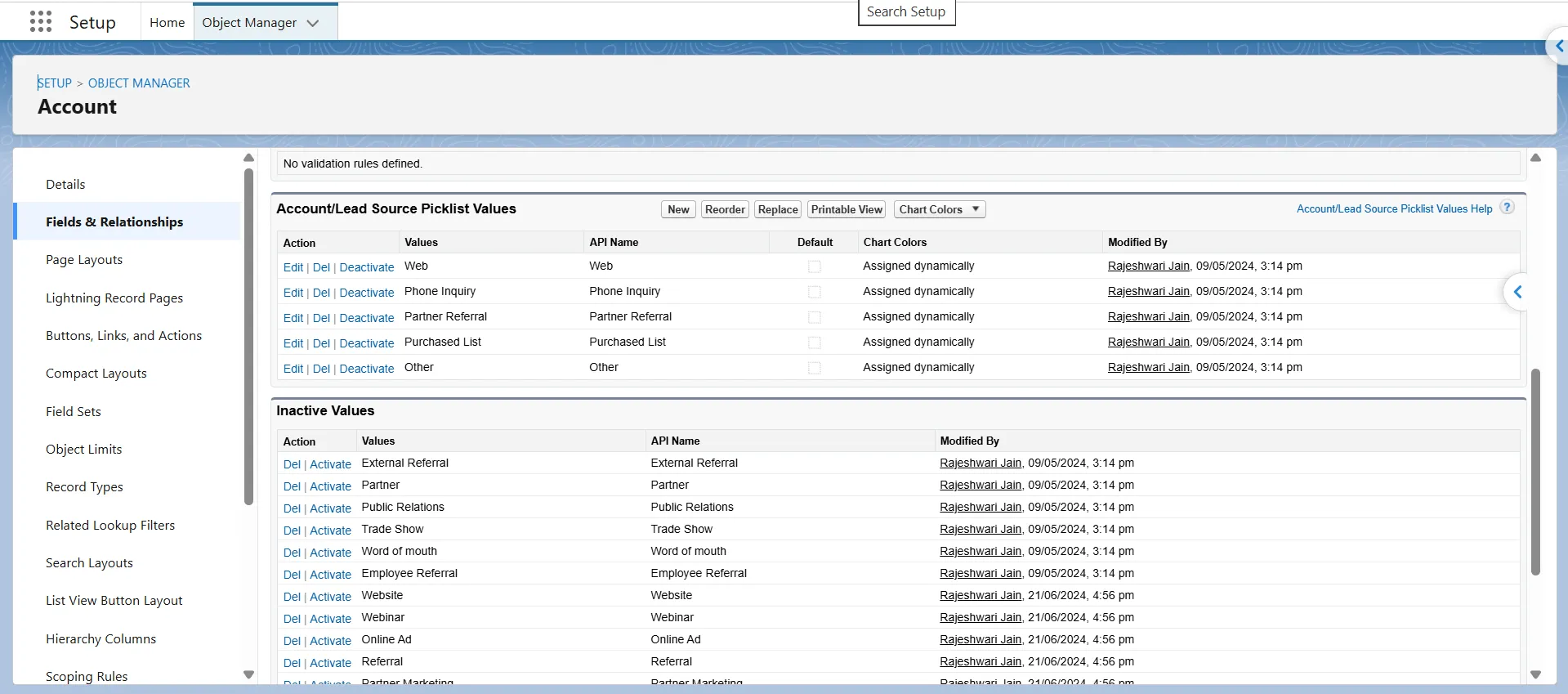
A restricted picklist only allows values that are defined for that field or its associated value set. A restricted picklist does not, by itself, mean that values must be managed through a global value set.
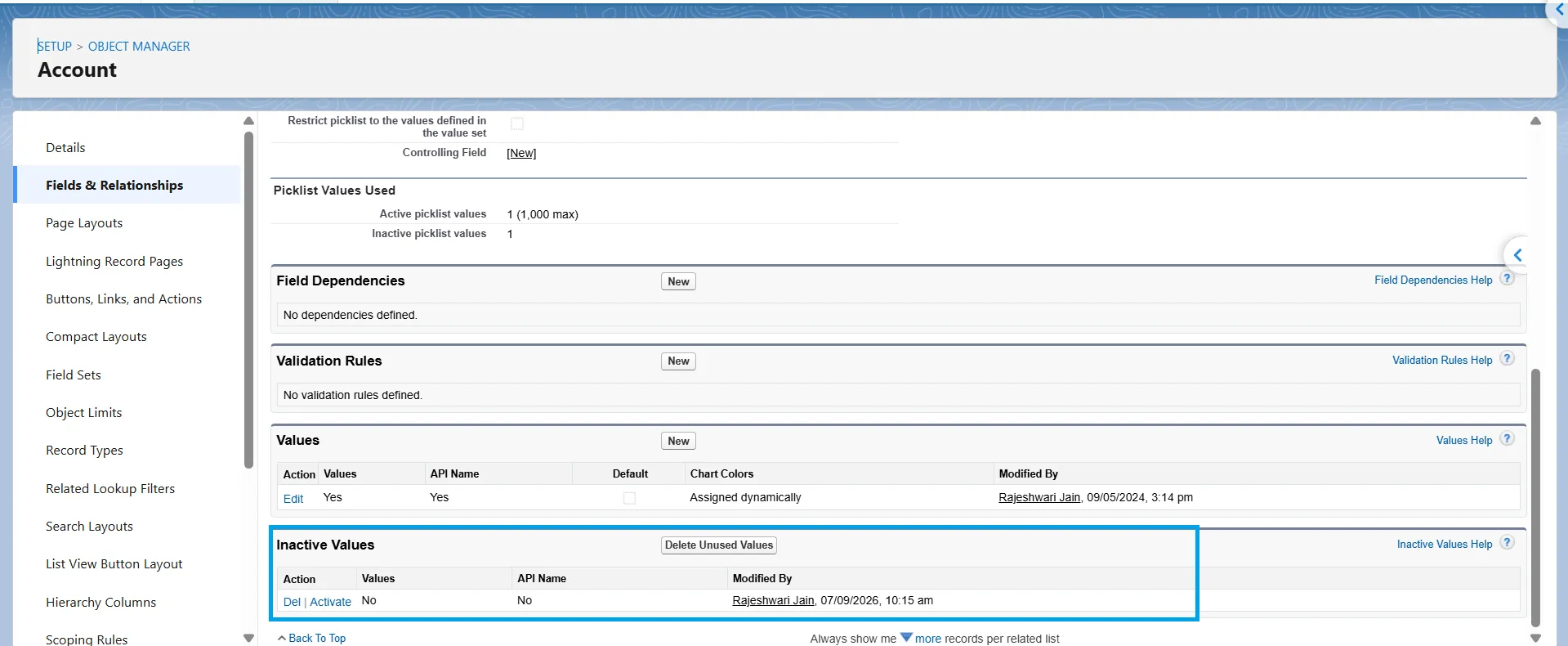
The value exists but is inactive
Inactive values remain in Salesforce but aren’t available for users to select when creating or updating records. Existing records can retain an inactive value. Check the Inactive Values section on the field detail page and reactivate the value if necessary.
The field isn't displayed on the page
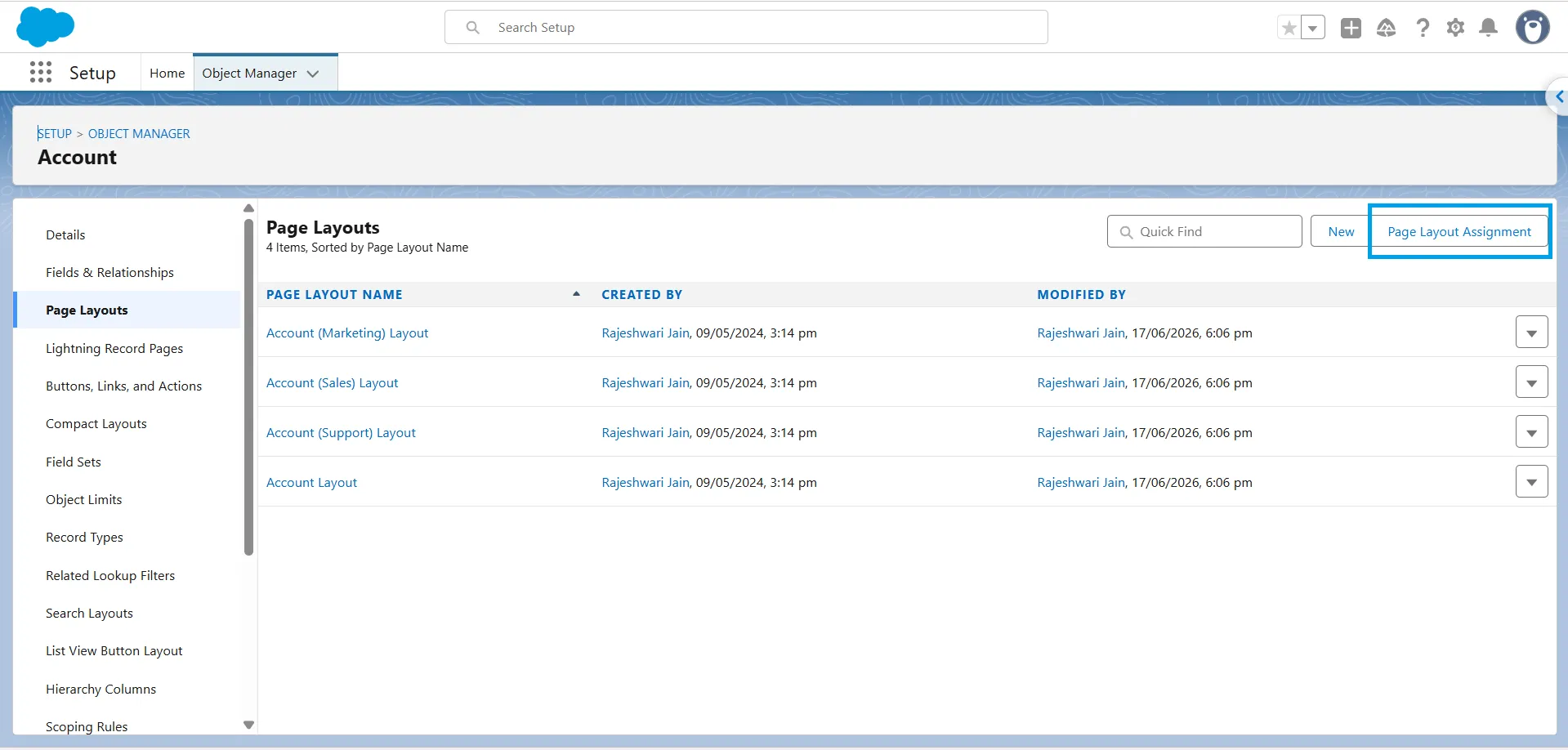
For pages that use the standard Record Detail component, check the page layout assigned to the user’s profile and record type. Go to Setup → Object Manager → [Object] → Page Layouts → Page Layout Assignment and confirm that the field is included on the assigned layout.
If the record page uses Dynamic Forms, check the Lightning App Builder instead. The field must be added to the Lightning record page, and its visibility rules must allow it to appear.
Tip
Add the standard Record Type field to your page layout, such as under System Information. This lets users and admins see the record type directly on the record, making it easier to identify why a particular picklist value isn’t available.
Still not showing?
If the configuration checks out, refresh the record page and try again. A hard refresh (Ctrl+Shift+R on Windows or Cmd+Shift+R on Mac) can help rule out a stale page as the cause.
Updating Values at Scale
Salesforce does not provide a bulk UI option for assigning an existing picklist value to multiple record types. In Setup, you must update each record type separately. When you create a new picklist value, however, Salesforce lets you assign it to multiple record types during the creation process.
For larger changes, use the Metadata API. The picklistValues collection on a RecordType holds one entry per picklist on that record type. Each entry defines the values available for that picklist. When you deploy this metadata, include every value assigned to the record type. Review the complete picklistValues block before deploying instead of assuming a change to one value is an incremental update.
The same applies when deploying record type metadata from VS Code or another Salesforce DX workflow. If you change a picklist assignment, check the complete picklistValues block to ensure the deployment does not produce an unintended configuration. If you add a new picklist value, make sure it exists in the target org before the record type configuration references it. Verify the resulting assignments in the target org.
Changing picklist configuration does not change the values already stored on existing records. Changing a record type also does not automatically replace an existing picklist value that is unavailable for the new record type. Review and update those records separately when necessary. Records can also have no record type assigned, so changing the available record types does not automatically assign one to those records.
For a small number of records, use Change Record Type manually. For larger batches, update the RecordTypeId and any affected field values through a supported data-loading method such as Data Loader.
Updating picklist values or record types across a lot of records?
XL-Connector lets you pull Salesforce records into Excel, update picklist values or record types right in the spreadsheet, and write the changes back, no CSV files or Data Loader mappings.
Conclusion
A picklist value that does not appear for users usually has a specific cause, such as the value not being assigned to the record type, a business process excluding it, or a field dependency or field-level security setting affecting its availability. If the value is still missing, start with Why the Value Might Still Not Show Up to check the most common causes in order.
FAQ
Why can't users see the picklist value I just added?
Adding a value to the field does not automatically make it available for every record type. Go to Setup → Object Manager → [Object] → Record Types → [Record Type] → Picklists Available for Editing and confirm that the value is in the Selected Values list. For Lead Status, Case Status, and Opportunity Stage, also check the associated business process because these fields use lead, support, and sales processes to determine their available values.
Do I need to update the business process separately from the record type?
Yes, for Lead Status, Case Status, and Opportunity Stage. These special picklists are not configured directly through the record type; their available values are defined by the associated Lead Process, Support Process, or Sales Process. Add the value to the field, include it in the appropriate process, and confirm that the record type uses that process.
Can I add a picklist value to all record types at once?
It depends on how the picklist is configured. For a picklist that uses a global value set, Salesforce provides an option to add a new value to all record types that use that value set. For a regular picklist, there’s no equivalent option, so you must add the value to the appropriate record types individually. For larger configuration changes, you can use Salesforce metadata tools to retrieve and deploy record type and picklist metadata instead of updating each record type manually.
Does removing a value from a record type delete it from the field?
No. Removing a value from a record type only removes it from that record type's available values. It does not delete the value from the underlying picklist, so the value can remain available for other record types where it is assigned. Deactivating the value at the field level is different. The value is no longer available for selection when users create or edit records, but existing records that contain the value retain it.
What happens to existing records when I change picklist values?
Changing which picklist values are available for a record type does not automatically change the values stored on existing records. An existing record can therefore retain a value that is no longer available for its current record type. If you need to replace that value across existing records, update the records separately using Data Loader or another appropriate Salesforce data-management method. If you delete or replace the picklist value itself, however, Salesforce provides options that can update the affected existing records.

Rajeshwari Jain
Content Manager
Rajeshwari Jain is a Technical Support Specialist and Content Writer at Xappex. She applies her practical experience to assist customers and create articles on how Xappex tools work with Salesforce to improve data management and increase efficiency.
She began her IT career in 2022 as a Quality Assurance professional before transitioning into Salesforce administration and technical writing in 2023. With Salesforce Certified Administrator and Associate certifications, Rajeshwari writes blogs on Salesforce flows, admin tools, and updates to expand her skills outside of work.
In her free time, she enjoys reading tech blogs and experimenting with new tools.
Feel free to reach out to Rajeshwari for collaborations or to check out her Salesforce-focused content.