Get Started Free
Salesforce lets you schedule reports to run automatically and email refreshed results to recipients. In Lightning Experience, you do this by subscribing to the report. In Salesforce Classic, use Schedule Future Runs.
Schedule a Report in Lightning Experience
-
1
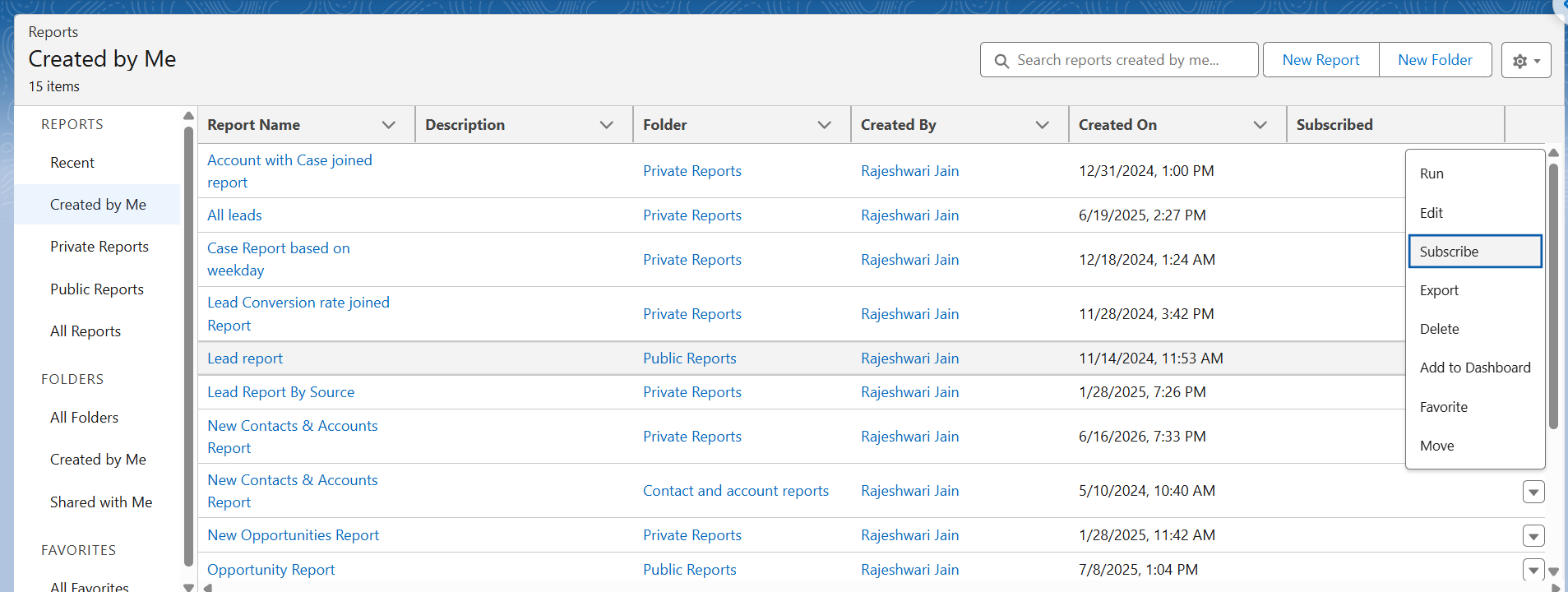
Open Subscribe. Go to the Reports tab, find the report, click the More Actions icon, and select Subscribe. You can also open the report and use the same icon on the report run page.

-
2
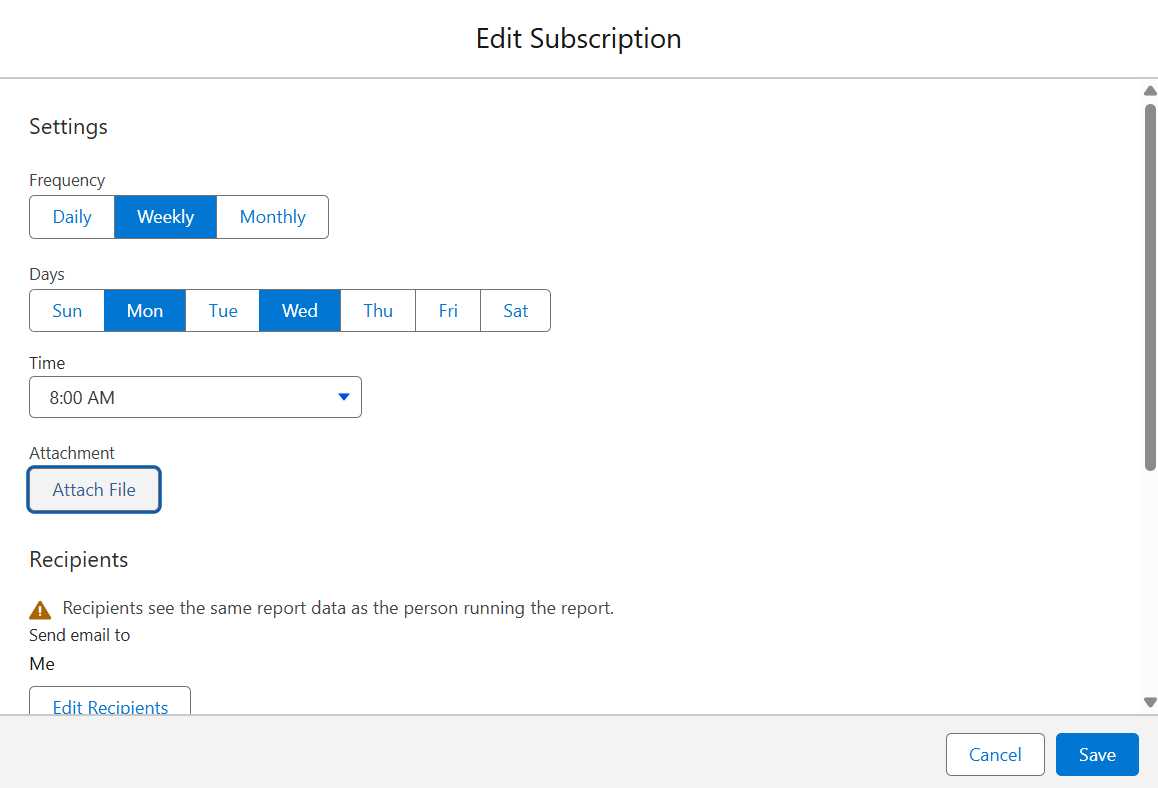
Set the schedule. Choose how often and when the report should run.
-
3
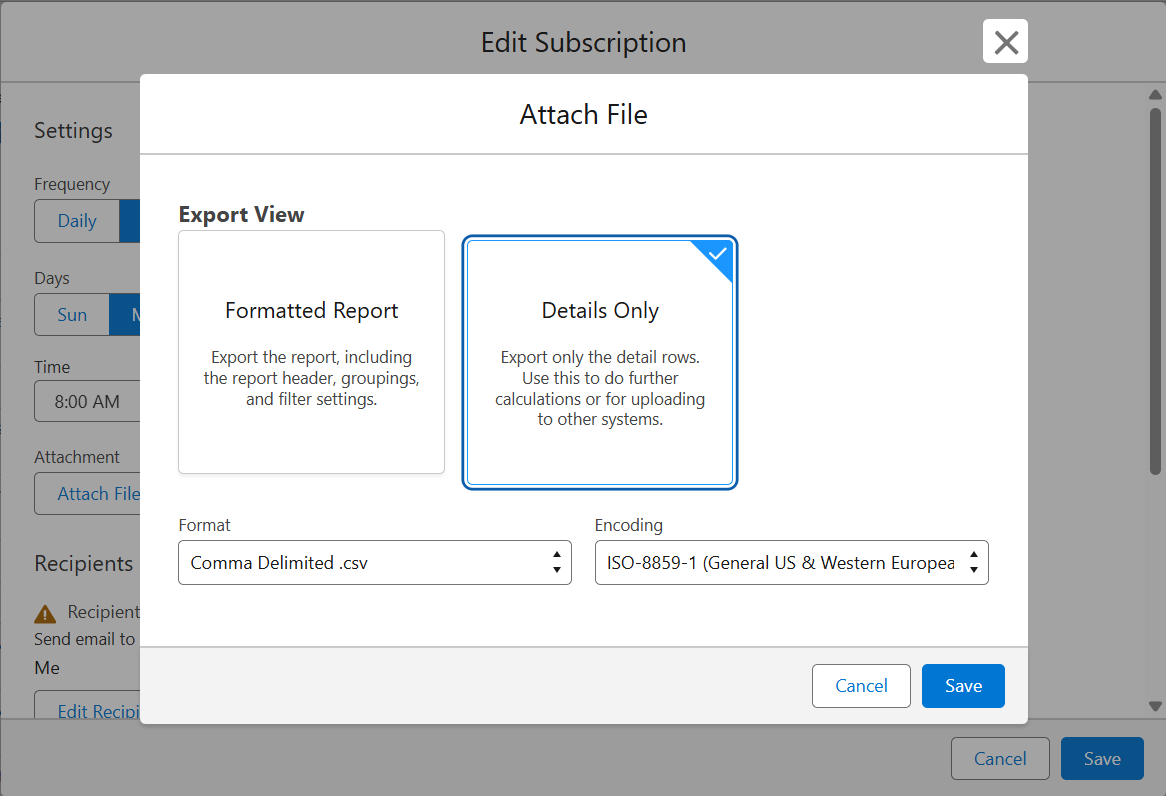
Attach a file (optional). Click Attach File and choose Formatted Report (.XLSX) or Details Only (.CSV). For CSV files, you can also select an encoding. Attachments are limited to 15,000 rows, 30 columns, and 3 MB. Salesforce clips or omits data that exceeds these limits.
-
4
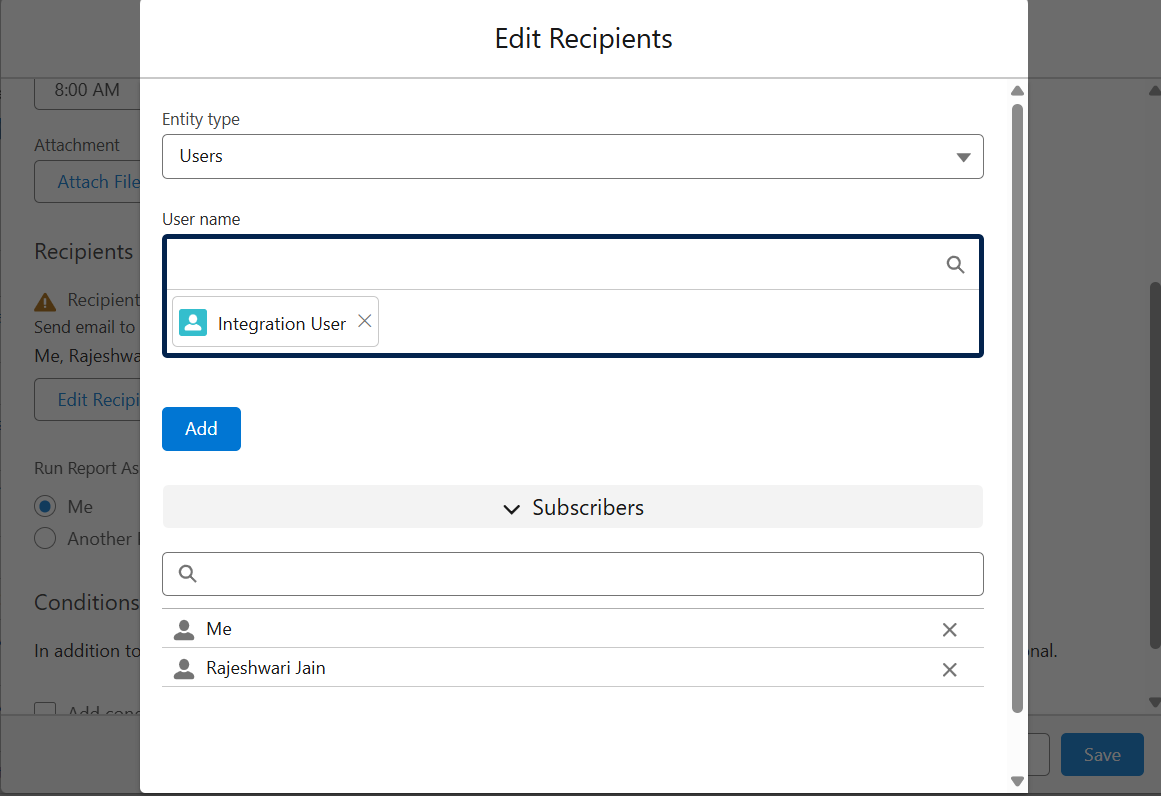
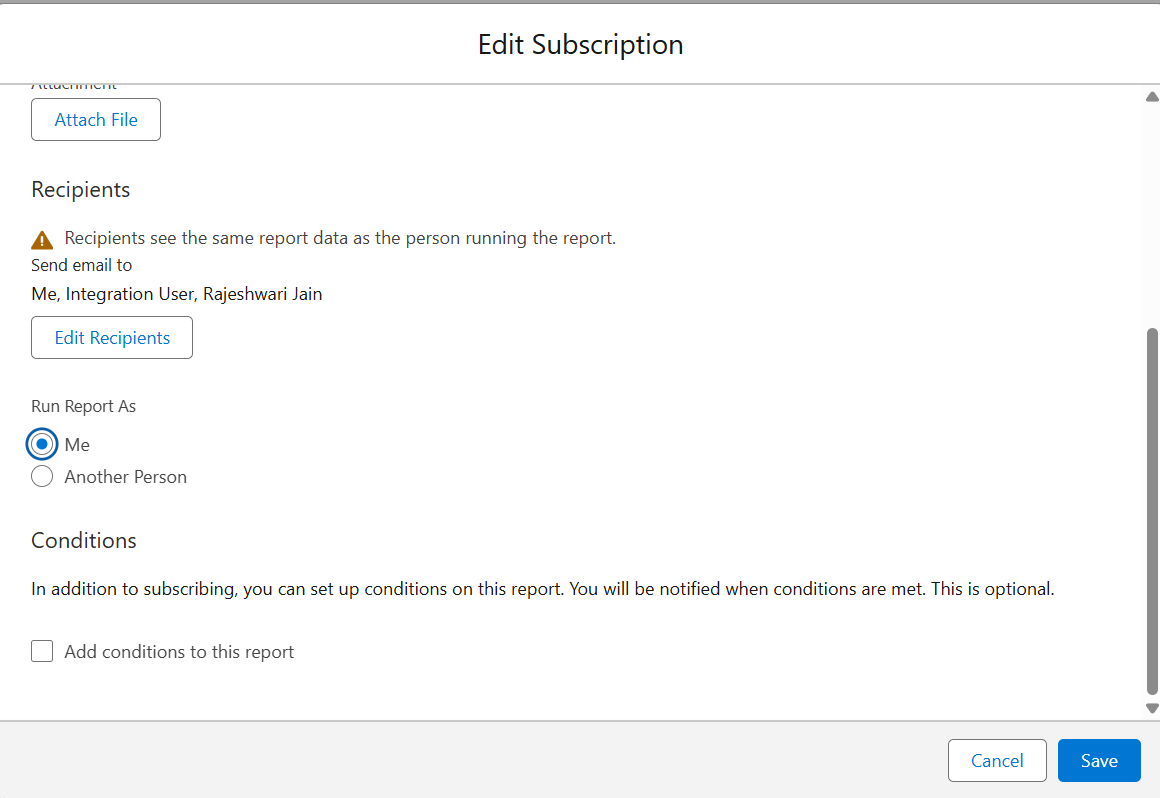
Add recipients. You’re added automatically, but you can remove yourself. Click Edit Recipients, choose an entity type, select users, groups, or roles, and click Add. Only recipients with permission to access the report are listed. The report folder must be shared with them.
-
5
Choose the running user. Under Run Report As, select Me or Another Person. Recipients see the same data as the running user, which may differ from what they can normally access.
-
6
Add conditions (optional). Send the email only when the report meets specific conditions. You can add up to five conditions. All conditions must be met for Salesforce to send the email.
-
7
Save. Click Save to activate the subscription.
Choose Who Receives the Report
To send a scheduled report to other users, click Edit Recipients in the subscription settings. Select a recipient type: Users, Roles, Roles and Subordinates, or Public Groups. Search for the names you want to add, select them, and click Add. Repeat to add more recipients.
You need the Subscribe to Reports: Add Recipients permission to add individual users and Subscribe to Reports: Send to Groups and Roles to add roles or public groups. The report folder must also be shared with the selected users, groups, or roles.

Note
Enhanced Folder Sharing must be enabled for the relevant recipient and running-user permissions to be available.
Choose Who the Report Runs As
The Run Report As setting determines whose Salesforce access the report uses. Select Me to run the report using your access or Another Person to use another user’s access. All recipients see the same report data based on the selected user’s permissions and record access.
For example, if you select a sales manager, the report may include opportunities across the team, even when individual sales representatives can normally see only their own opportunities.
To select another running user, you need the Subscribe to Reports: Set Running User permission. The selected user must also have permission to run reports and access to the report.
Tip
Review the running user’s permissions and record access if recipients receive unexpected report results.
Send Only When a Condition Is Met
To send a report only when specific conditions are met, select Add conditions to this report in the Conditions section. Choose an aggregate, such as Record Count, select an operator, and enter a value.
For example, set Record Count to Greater Than 0 for an overdue-tasks report. Salesforce sends the email only when the report contains at least one matching record. You can add up to five conditions, all of which must be met before Salesforce sends the email.
See Which Reports Are Scheduled
You can check your subscriptions from the Reports tab or review scheduled jobs in Setup.
- Reports tab: Select Subscribed in the left sidebar to see the reports you receive.
- Setup: Search for Scheduled Jobs in Quick Find to view scheduled jobs, including supported Classic report schedules.
Scheduled Jobs does not show all Lightning report subscriptions. To review them across your organization, create a custom report type based on Analytic Notifications.
| Where | What you see | Who can access it |
|---|---|---|
| Reports tab, Subscribed | Reports you receive | You |
| Setup, Scheduled Jobs | Scheduled jobs, including supported Classic report schedules | Users with View Setup and Configuration |
| Custom report type, Analytic Notifications | Lightning report subscription details, including owners, recipients, and running users | Users with the required reporting and object permissions |
Edit a Report Schedule
To edit a report subscription in Salesforce Lightning Experience, open the report, or go to the Reports tab, click the more actions icon, and select Subscribe. Salesforce opens the existing subscription settings. Update the schedule, attachment option, recipients, or conditions as needed, then click Save. If you have the “Subscribe to Reports: Set Running User” permission, you can also change who runs the report.
Cancel a Scheduled Report
In Lightning Experience, you can cancel your own subscription:
-
1
Open the report.
-
2
Click Subscribe.
-
3
In the subscription settings, click Unsubscribe.
-
4
Confirm the cancellation.
Each user has a subscription limit that depends on the Salesforce edition and can’t be increased. If you reach it, cancel an existing subscription to free a slot.
If you can’t unsubscribe from the report, an admin with the “View Setup and Configuration” permission can search Scheduled Jobs in Setup, find the relevant report job, and delete it. Verify that you have selected the correct job first, because deleting it removes the schedule for everyone.
When a Scheduled Report Does Not Arrive
If a scheduled report does not arrive, check the running user, subscription conditions, recipient access, and scheduled job status. These settings can affect whether Salesforce runs the report and sends its results.
The running user is inactive or lacks access
For Classic scheduled reports, Salesforce doesn’t run the report if its running user becomes inactive.
For Lightning report subscriptions, the selected running user must have the Run Reports permission and access to the report.
Check the Run Report As setting and select an active user with the required permissions and report access.
The subscription conditions are not met
Salesforce evaluates report subscription conditions each time the report runs. It sends an email only when all configured conditions are met.
For example, if the condition is Record Count greater than 0, Salesforce won’t send an email when the report returns no records. Review the subscription conditions and run the report to verify its results.
Recipients don't have the required access
To add users, public groups, or roles as Lightning report subscription recipients, the report folder must be shared with them first.
Check the folder’s sharing settings and confirm that recipients have access to the folder where the report is stored. Recipients see the same data as the running user, so the running user’s access determines what the report shows.
An old job is still running after an edit
After editing a report subscription, check Setup → Scheduled Jobs for duplicate entries associated with the report. Compare the report names and scheduled times. If an obsolete job is still running, delete it using the Del action.
The scheduled job has stopped running
Go to Setup → Scheduled Jobs and check the Next Scheduled Run date. If the date is in the past, the job might have missed its scheduled execution.
Salesforce documents a recovery procedure for affected scheduled jobs: reopen the schedule and save it again without changing its settings. Check whether the Next Scheduled Run date updates.
Schedule a Report in Salesforce Classic
Open the report, select Run Report, and then Schedule Future Runs. Choose a running user who has access to the report’s folder. Specify the email recipients, frequency, start and end dates, and preferred start time. Click Save Report Schedule to activate the schedule.
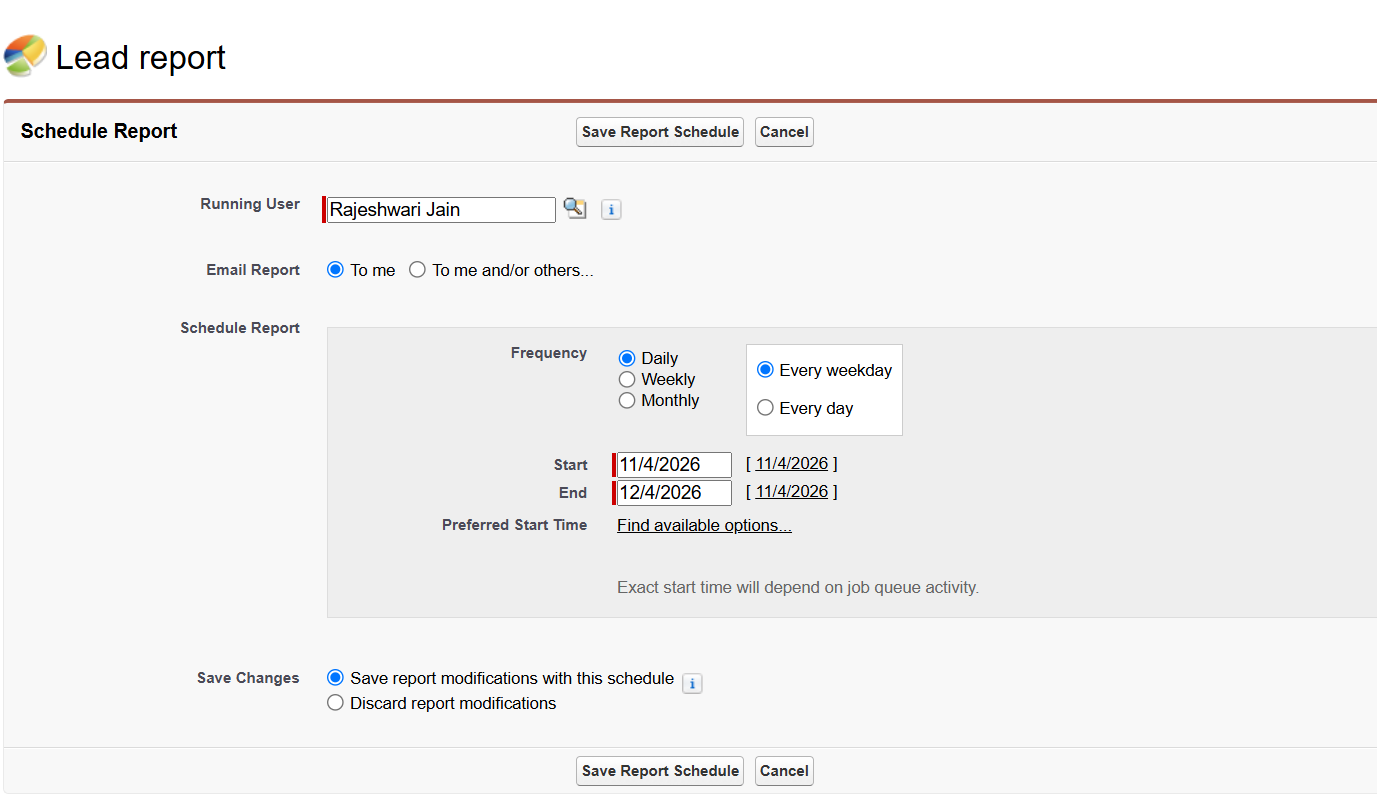
You need the Schedule Reports permission to schedule reports in Salesforce Classic.
Limits of Scheduled Reports
Salesforce report subscriptions in Lightning Experience have limits on subscriptions, recipients, attachment size, and data delivery.
| Limit | What to know |
|---|---|
| Subscriptions per user | Users can subscribe to up to 15 in Unlimited Edition and 7 reports in other editions (Performance, Enterprise etc). Report and dashboard subscriptions count separately. |
| Recipients per subscription | Each subscription supports up to 500 recipients. If the total exceeds 500, users added individually take priority over roles, roles and subordinates, and groups. Salesforce selects recipients again at each send, so the recipients who receive the email can vary. |
| Subscriptions per hour | Each org can schedule up to 500 report subscriptions and 500 dashboard subscriptions for the same hour on a given day. |
| Attachment size and rows | Attachments support up to 15,000 rows, 30 columns, and 3 MB. Salesforce clips or omits data that exceeds these limits. |
| Who can receive them | Recipients must be Salesforce users, groups, or roles with access to the report through its shared folder. You can't add arbitrary external email addresses. Experience Cloud partner users don't receive subscription emails. |
| Different data per recipient | All recipients receive the same data, generated from the selected running user's perspective. They may see more or less data than they normally can access. Salesforce doesn't apply separate report filters for individual recipients. |
| Spreadsheet delivery | You can attach results as a formatted XLSX or a details-only CSV file. The Export Reports permission is required. Subscriptions don't refresh existing Excel or Google Sheets files. |
| Unsupported features | You can't subscribe to historical trending or joined reports. Conditional highlighting doesn't appear in subscription emails, and images specified in custom formula fields aren't supported. |
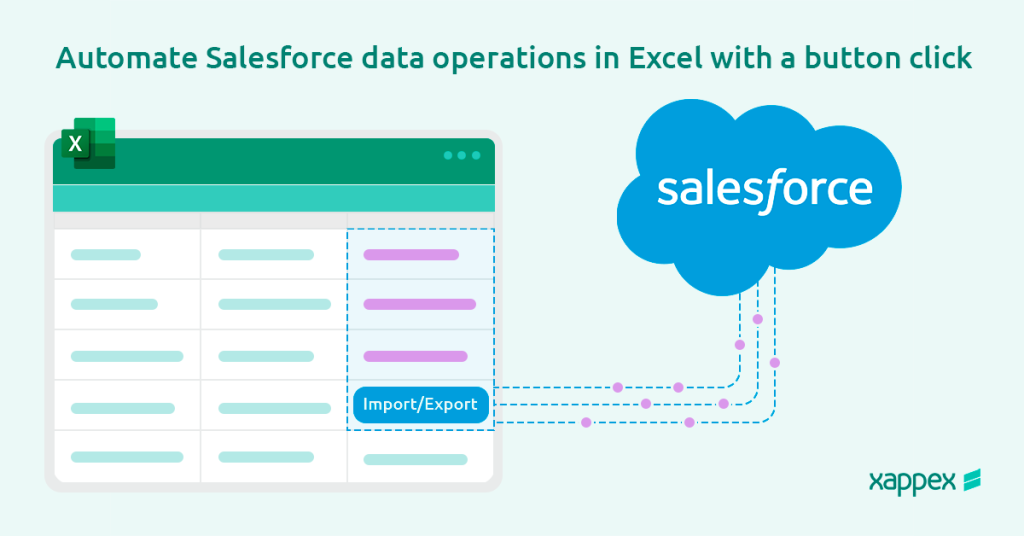
To refresh Salesforce report data directly in Excel or Google Sheets, see how to export and schedule a Salesforce report in Excel.
Conclusion
Subscribe from the report page or Reports list, choose recipients, set the running user, and add conditions if needed. Manage schedules in Scheduled Jobs. If an email doesn’t arrive, check the running user’s access, subscription conditions, and report folder permissions.



Rajeshwari Jain
Content Manager
Rajeshwari Jain is a Technical Support Specialist and Content Writer at Xappex. She applies her practical experience to assist customers and create articles on how Xappex tools work with Salesforce to improve data management and increase efficiency.
She began her IT career in 2022 as a Quality Assurance professional before transitioning into Salesforce administration and technical writing in 2023. With Salesforce Certified Administrator and Associate certifications, Rajeshwari writes blogs on Salesforce flows, admin tools, and updates to expand her skills outside of work.
In her free time, she enjoys reading tech blogs and experimenting with new tools.
Feel free to reach out to Rajeshwari for collaborations or to check out her Salesforce-focused content.