Get Started Free



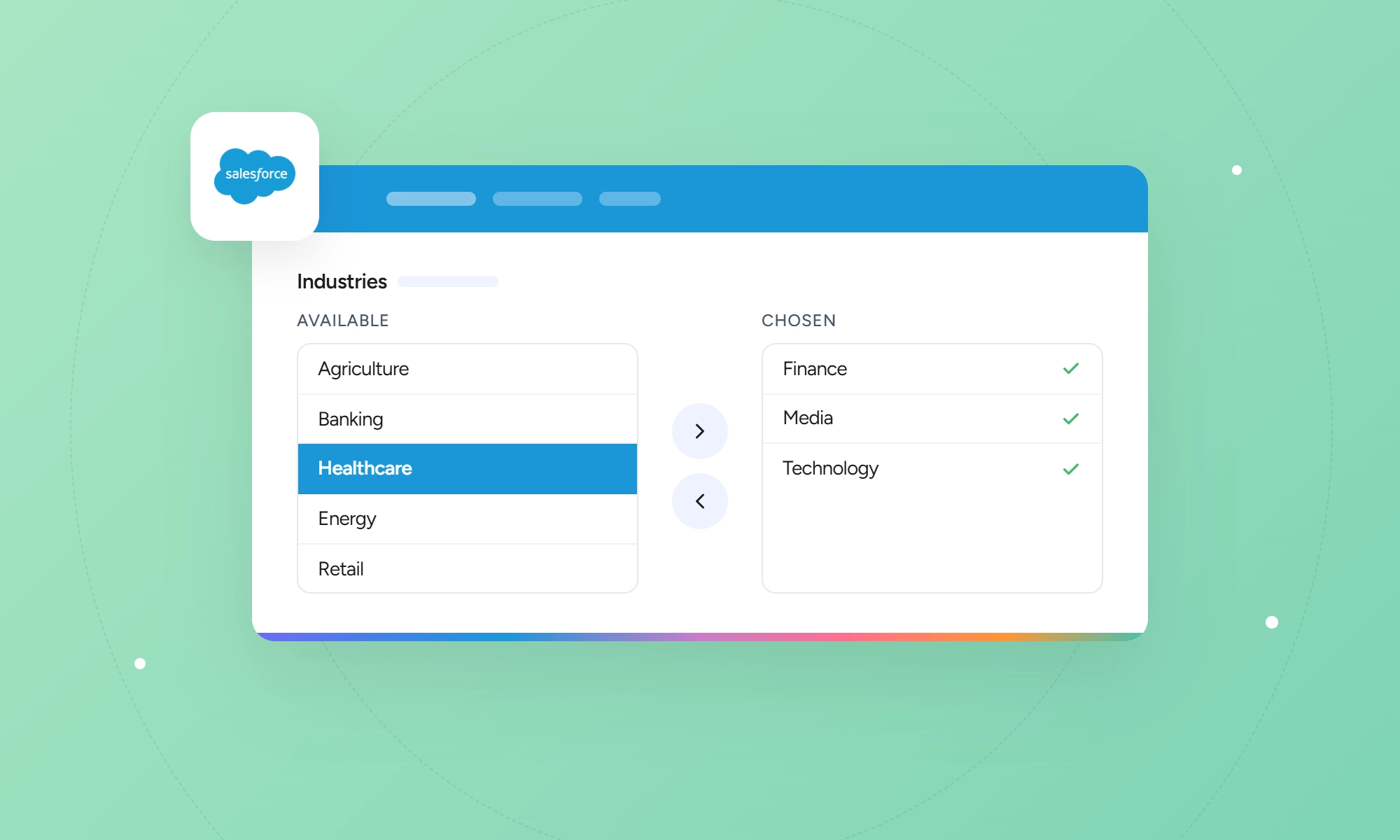
A multi-select picklist in Salesforce lets users select multiple values from a predefined list in one field. Salesforce stores the selected values as text separated by semicolons. This format affects how the field works with reports, formulas, imports, and automation.
What Is a Multi-Select Picklist?
A multi-select picklist lets users select one or more values from a predefined list. Salesforce displays the selected values in one field, separated by semicolons. For example, selecting two regions might display Midwest;West.
Use this field when a record needs to store multiple related choices. For example, a Contact record might list a person’s product interests, preferred communication channels, or areas of expertise. A custom Session or Registration object could track the sessions a person plans to attend, while a Case record could list the types of assistance a customer needs.
How to Create a Multi-Select Picklist
Create the field in Salesforce Setup and configure its values, settings, and page layout.
Steps and Field Settings
-
1
Open Setup. Click the gear icon and select Setup.
-
2
Select the object. Open Object Manager and choose the object where you want to add the field.
-
3
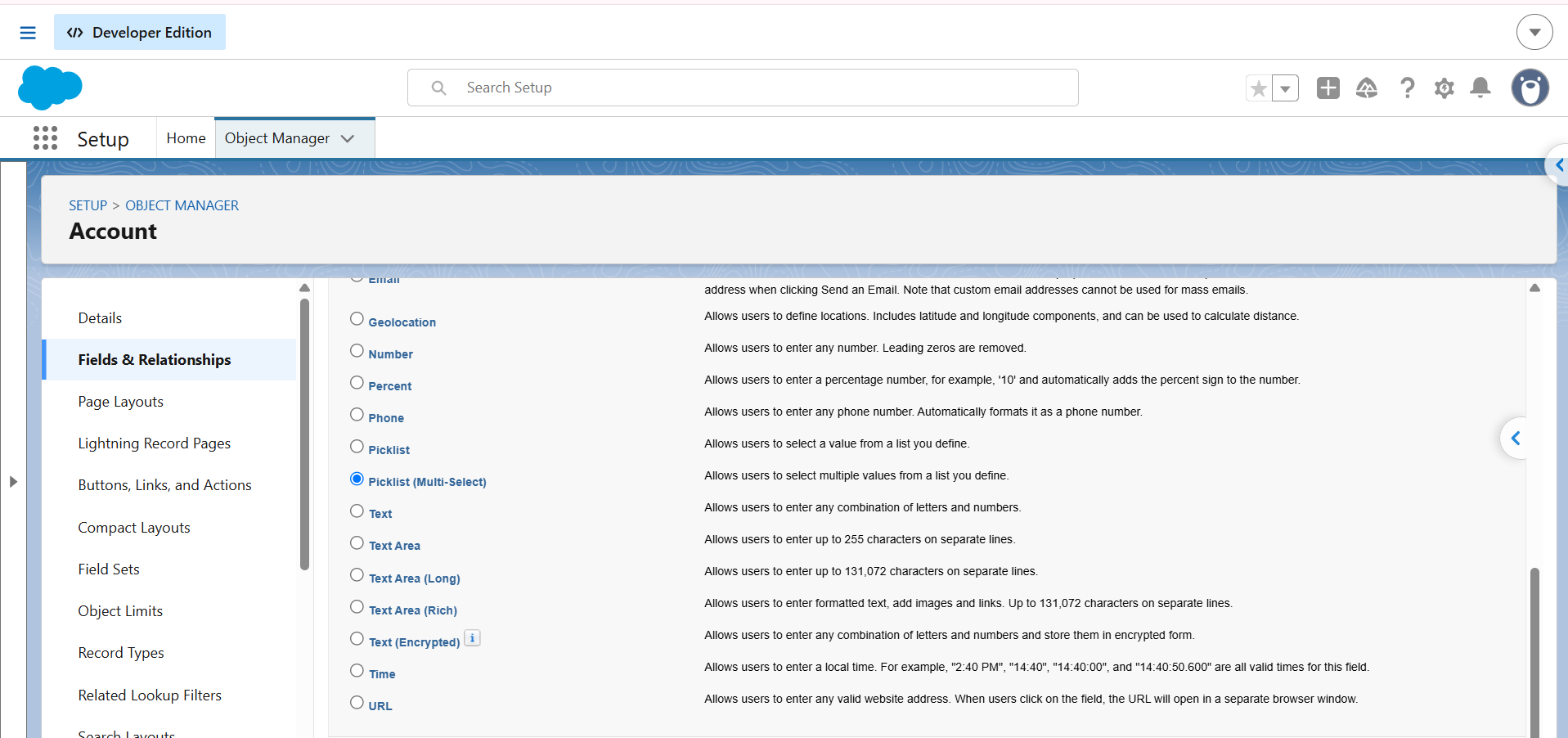
Choose the field type. Open Fields & Relationships, click New, select Picklist (Multi-Select), and click Next.
-
4
Enter the field details. Add a field label and enter each value on a separate line. You can also select Use global picklist value set to use a Global Value Set.
-
5
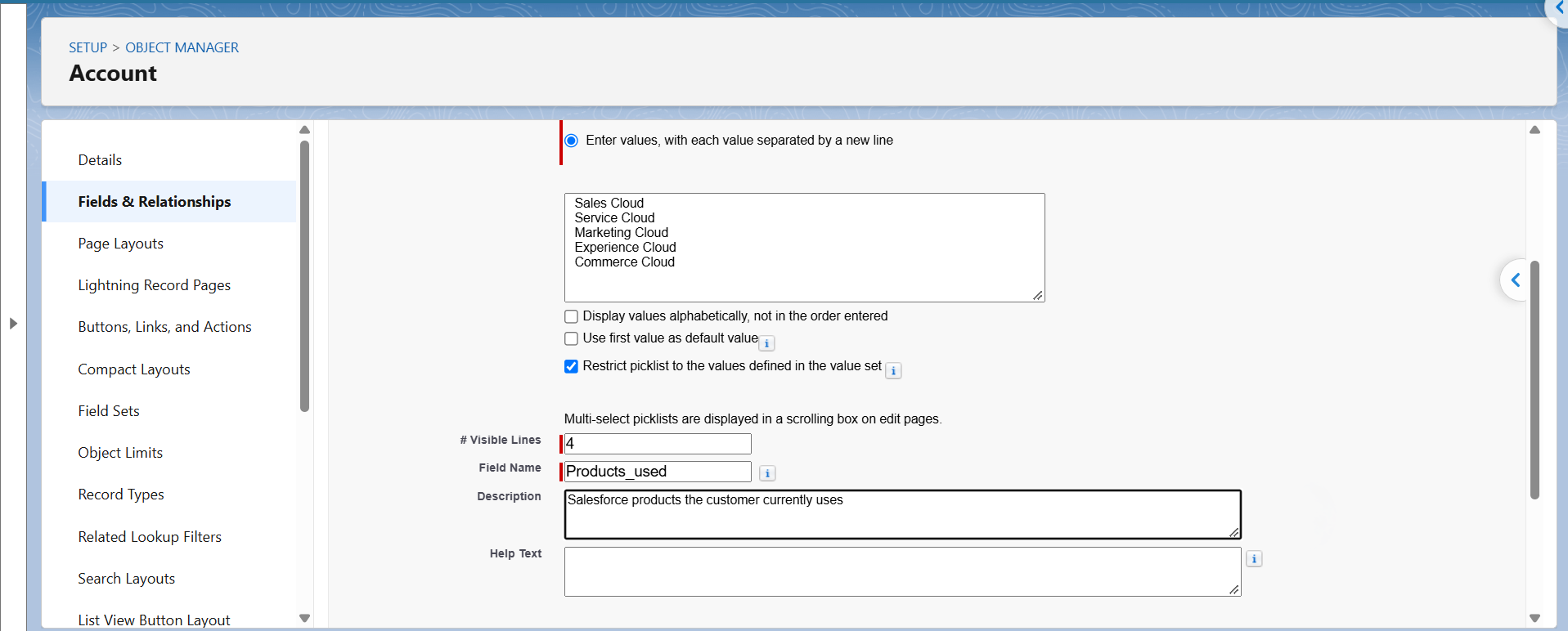
Configure the settings. Set the default, sorting, visible lines, required status, description, and help text as needed. Click Next.
-
6
Set field-level security. Choose which profiles can see and edit the field, then click Next.
-
7
Save the field. Select the page layouts where the field should appear, then click Save.
For example: The Products Used multi-select picklist on the Account object lets users select multiple products: Commerce Cloud, Experience Cloud, Marketing Cloud, Sales Cloud, and Service Cloud.
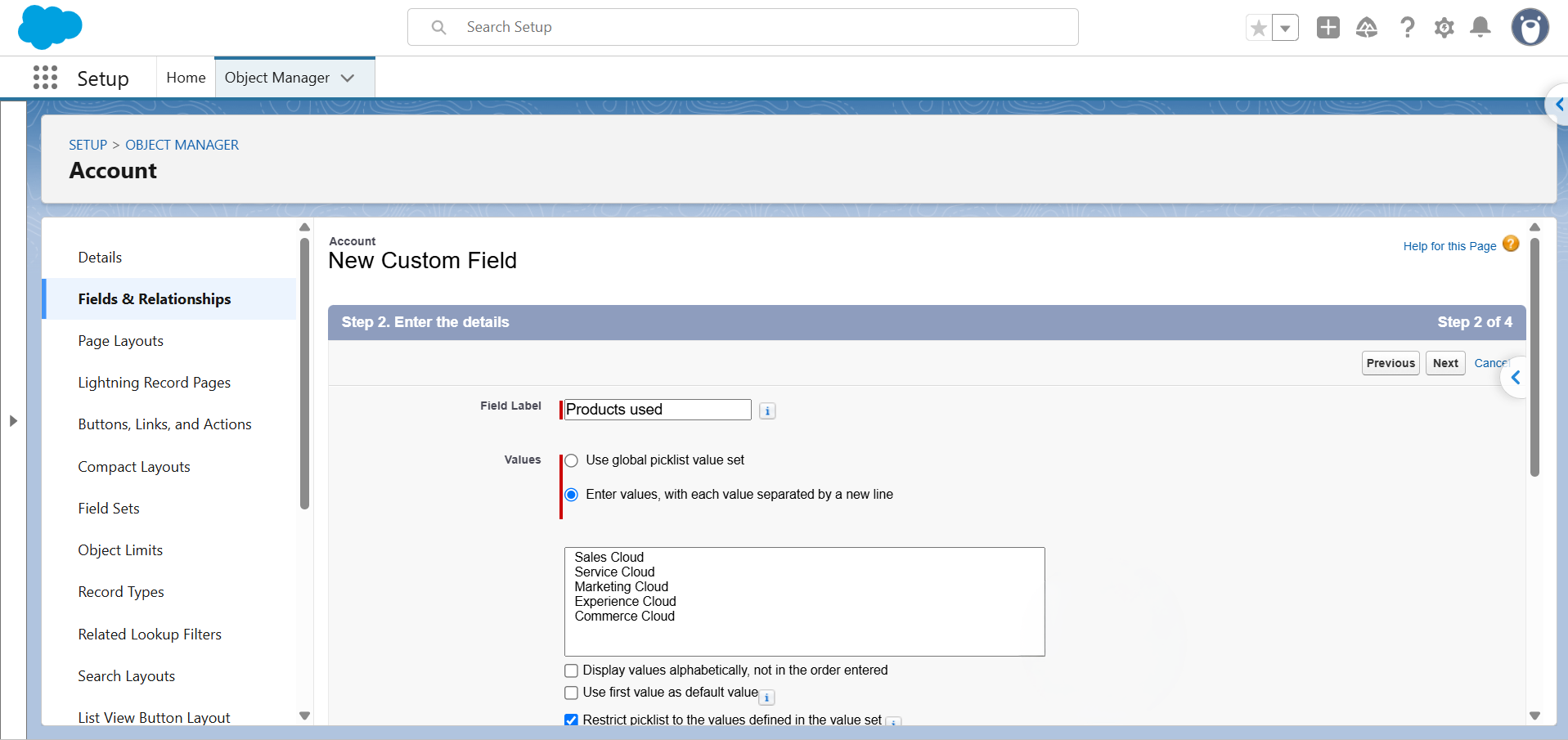
Field Settings Explained
| Setting | What it does |
|---|---|
| Values | Enter one value per line or select a Global Value Set. |
| Display values alphabetically, not in the order entered | Arranges the values in alphabetical order. |
| Use first value as default value | Sets the first value as the default. Test the field on a new record to confirm how Salesforce applies it. |
| Restrict picklist to the values defined in the value set | Prevents users and integrations from saving values outside the defined list. |
| Visible Lines | Sets how many values appear before users need to scroll. Check the setup screen for the allowed range. |
| Required | Requires a selection before users can save the record. Test the field with no selection to confirm its behavior. |
| Description | Provides information about the field for administrators. |
| Help Text | Explains the field to users and appears when they open the help icon next to it. |
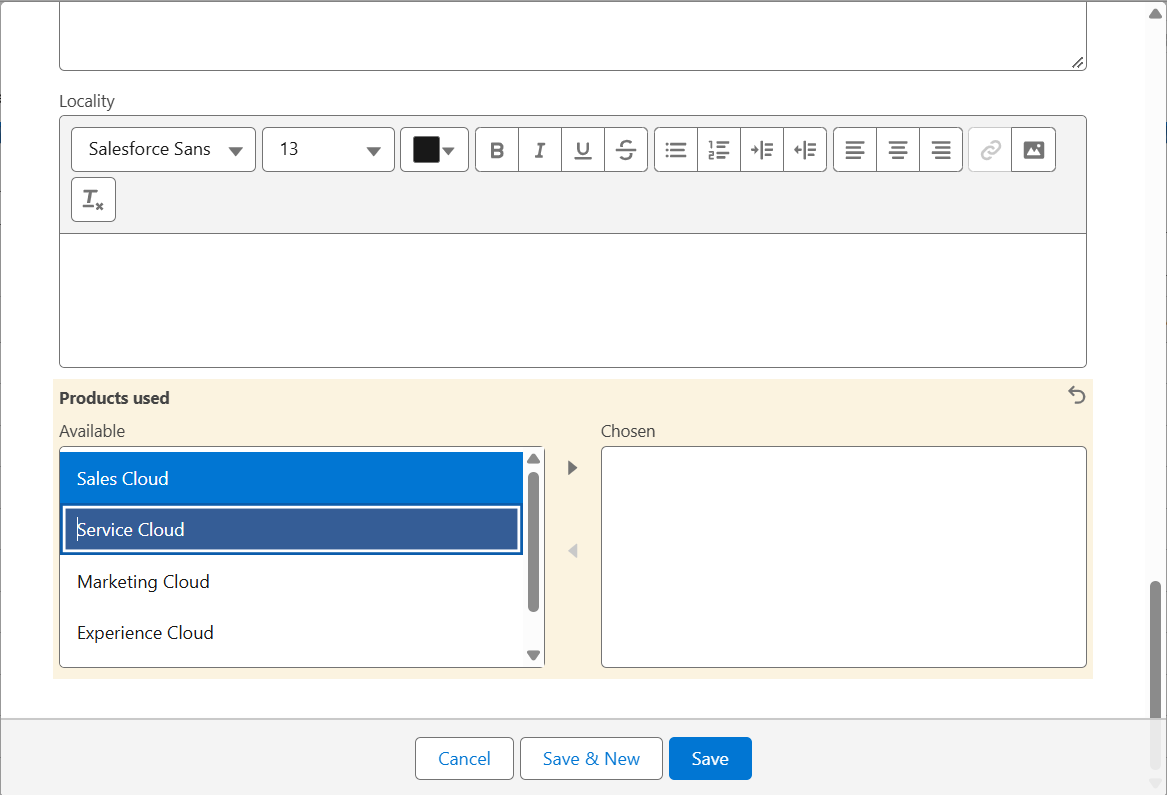
Selecting Values on a Record
When users edit a record, Salesforce displays Available and Chosen lists. To select multiple values, hold Ctrl on Windows or Command on Mac while clicking each value. Use Shift to select a range.
If the field does not appear on a record, check the page layout, Lightning record page (including Dynamic Forms, if used), and the user’s field-level security settings.
Multi-Select Picklist in Reports
Salesforce reports display selected multi-select picklist values as a semicolon-separated string. For example, a record with Sales Cloud, Service Cloud, and Marketing Cloud selected shows as Sales Cloud;Service Cloud;Marketing Cloud.
Filter by One or More Values
-
Includes returns records with at least one selected value.
-
Excludes returns records with none of the selected values, including those with a blank field.
-
Equals matches the specified combination of values. For example, Equals Sales Cloud does not match Sales Cloud;Service Cloud.
Select values exactly as they appear in the picklist.

Tip
To find records with any of several values, select them in one Includes filter. To find records with all values, add a separate Includes filter for each and join the filters with AND. Use OR when a record must match only one filter condition.
Why Grouping Fails and How to Count Values
Salesforce reports group records by the complete combination of selected multi-select picklist values, not by individual values.
For example, records containing Sales Cloud;Service Cloud, Service Cloud;Marketing Cloud, and Service Cloud appear in three separate groups. Salesforce does not combine them into one group for Service Cloud.
To count records containing a specific value, use one of these methods:
- Create a filtered report for each value. Use the includes filter operator to find records containing that value.
- Create formula fields. Use INCLUDES() in a Checkbox or Number formula field to identify records containing a specific value. Add the field to your report to group or summarize the results.
- Export the data to a spreadsheet. Split the selected values and count how many records contain each one.
See Salesforce Reports: Cannot Group or Summarize by Multi-Select Picklist Fields to know more.
If you need counts for individual values regularly, see the When to Use Something Else section.
Multi-Select Picklist in SOQL
A multi-select picklist lets users select multiple values in one field, such as the Salesforce clouds a customer uses. Salesforce stores these selections as a semicolon-separated string, like Sales Cloud;Service Cloud. SOQL provides specific operators to filter these fields.
Use = and != to compare the entire field value with an exact combination of values. Use INCLUDES and EXCLUDES to check whether specific values are selected or excluded. Within an INCLUDES or EXCLUDES expression, a semicolon between values means AND, while a comma between strings means OR.
The examples use a multi-select picklist named Product Used (API name Product_Used__c) on the Account object. Its values are Sales Cloud, Service Cloud, Marketing Cloud, and Commerce Cloud. You cannot use a multi-select picklist field in an ORDER BY clause.
For syntax details, see the SOQL documentation.
SOQL Operators for Multi-Select Fields
| Operator | What it does | Example |
|---|---|---|
| = | Matches the exact combination of values, with no additional selections. | WHERE Product_Used__c = 'Sales Cloud;Service Cloud' |
| != | Matches records whose entire field value differs from the specified combination. It does not check whether an individual value is absent. | WHERE Product_Used__c != 'Sales Cloud;Service Cloud' |
| INCLUDES | Matches records containing the specified values. A semicolon means AND; a comma between strings means OR. | WHERE Product_Used__c INCLUDES ('Sales Cloud;Service Cloud', 'Marketing Cloud') |
| EXCLUDES | Matches records that do not contain the specified combination. A semicolon means AND; a comma between strings means OR. | WHERE Product_Used__c EXCLUDES ('Commerce Cloud') |
In API version 39.0 and later, use the value's API name, which may differ from its displayed label.
Value Order in SOQL vs. the UI
The UI displays multi-select picklist values in the order defined in Setup. SOQL, Apex, and the API return them in the order the values were created. Reordering values in Setup does not change this order.
To change the order returned by SOQL, create new values in the desired order and use Replace to replace the old values one at a time. Wait for each background job to finish before starting the next.
Test the process in a sandbox first, and follow Multi-Select Picklist Value ordering behavior for the full steps.
Multi-Select Picklist in Formulas and Validation Rules
Use INCLUDES() to check whether a multi-select picklist contains a specific value. Salesforce doesn’t support TEXT() for multi-select picklists. To display selected values in a formula field, check each value with INCLUDES() and concatenate the results.
Salesforce supports INCLUDES(), ISBLANK(), ISCHANGED(), and PRIORVALUE() for multi-select picklists, subject to context restrictions. ISCHANGED() and PRIORVALUE() work in validation rules and certain workflow contexts, but not in formula fields. Use ISBLANK() instead of the older ISNULL() function.
The second argument of INCLUDES() must be a quoted text literal, not a merge field or function result.
In a validation rule, Salesforce blocks the save when the formula evaluates to TRUE and displays the configured error message.
Examples
This formula returns TRUE if Sales Cloud is selected:
INCLUDES(Products_Used__c, "Sales Cloud")To require at least one selection, use this validation rule and set the error message to “Select at least one product.”
ISBLANK(Products_Used__c)Check the Previous Value
This validation rule checks whether the previous value included Sales Cloud:
INCLUDES(PRIORVALUE(Products_Used__c), "Sales Cloud")Display Selected Values in a Formula Field
To display an Account’s selected values on a related Contact, create a Text formula field on Contact. Use INCLUDES() to check each value and concatenate the results.
IF(INCLUDES(Account.Products_Used__c, "Commerce Cloud"), "Commerce Cloud; ", "") &
IF(INCLUDES(Account.Products_Used__c, "Experience Cloud"), "Experience Cloud; ", "") &
IF(INCLUDES(Account.Products_Used__c, "Marketing Cloud"), "Marketing Cloud; ", "") &
IF(INCLUDES(Account.Products_Used__c, "Sales Cloud"), "Sales Cloud; ", "") &
IF(INCLUDES(Account.Products_Used__c, "Service Cloud"), "Service Cloud; ", "")
The formula separates selected values with semicolons and leaves a trailing semicolon and space. For example, if the Account has Sales Cloud and Service Cloud selected, the Contact displays Sales Cloud; Service Cloud;.
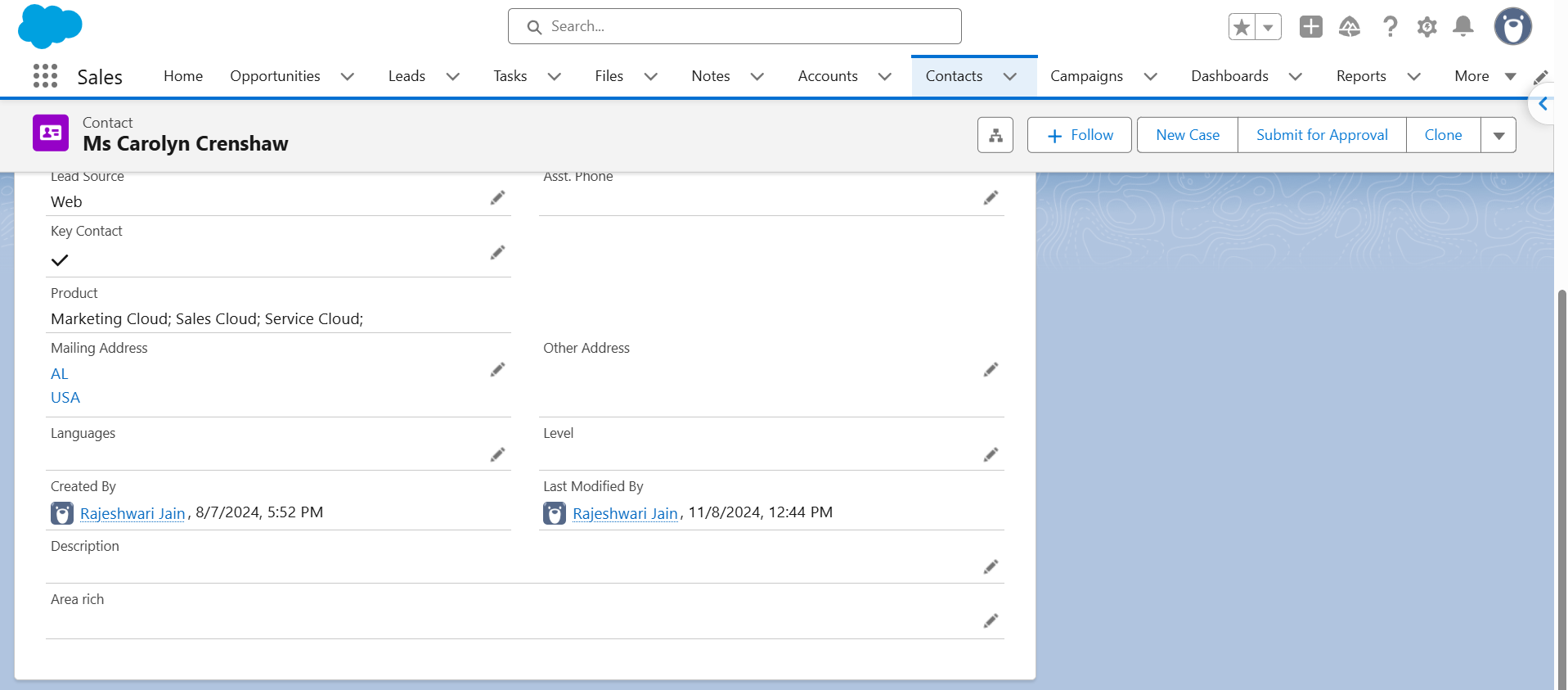
To display each value on a separate line, use BR() instead of the semicolon separator.
Validation Rules for Conflicting Values
Use this validation rule to prevent users from selecting both Commerce Cloud and Experience Cloud:
AND(
    INCLUDES(Products_Used__c, "Commerce Cloud"),
    INCLUDES(Products_Used__c, "Experience Cloud")
)
Set the error message to “Commerce Cloud and Experience Cloud can’t be selected together.”
Commerce Cloud and Sales Cloud can be selected together, but Commerce Cloud and Experience Cloud cannot.
Tip: Limit the Number of Selections
To limit users to three selections, count each selected value and block the save when the total exceeds three. Include every available picklist value in the formula.
IF(INCLUDES(Products_Used__c, "Commerce Cloud"), 1, 0) +
IF(INCLUDES(Products_Used__c, "Experience Cloud"), 1, 0) +
IF(INCLUDES(Products_Used__c, "Marketing Cloud"), 1, 0) +
IF(INCLUDES(Products_Used__c, "Sales Cloud"), 1, 0) +
IF(INCLUDES(Products_Used__c, "Service Cloud"), 1, 0) > 3
Use this expression as the condition in a validation rule. Add a check for every other value in the picklist. Three selections will be allowed, but four will trigger the error.
For details, see Salesforce Help: INCLUDES and Salesforce Help: Multi-Select Picklist Formula Example.
Multi-Select Picklist in Flow
To check whether a value is absent from a multi-select picklist in Flow, use a Formula resource with the INCLUDES() function and route the Decision based on the formula result. Use the default outcome for records that don’t meet the conflict condition.
For example, a registration flow can check whether a customer selected a region that conflicts with their assigned service area. If the formula identifies the conflicting selection, the flow routes the record to a conflict outcome. Otherwise, it follows the default path.
In Apex, multi-select picklist values are returned as a semicolon-separated string. Use split(‘;’) to separate the values for individual processing.
Test the flow with overlapping value names, different capitalization, and multiple selections before deployment. For alternatives to multi-select picklists, see the Salesforce Admins guide to alternatives to multi-select picklists
Load Values with a Choice Set
In a Screen Flow, add a Multi-Select Picklist component and create a Picklist Choice Set resource. Select the object and picklist field that supply the choices, then assign the resource to the component. The flow uses the field’s configured values, reducing the need to maintain a separate list. The same resource also works with regular picklists.
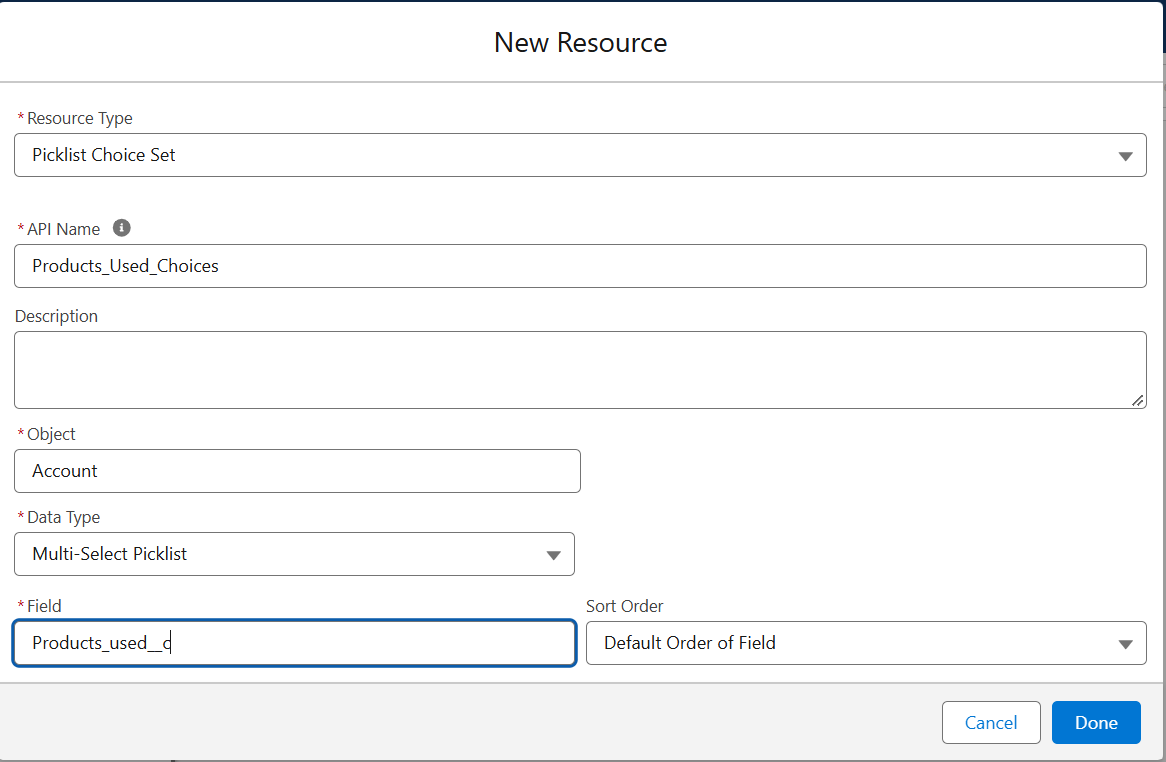
To save the user’s selections, map the component’s output to the multi-select picklist field in a Create Records element. The component returns the selected values as a single semicolon-separated text string.
Add a Value Without Overwriting Existing Ones
Setting a multi-select picklist field to a single value replaces its existing selections. To preserve them, use an Assignment element with the Add Item operator to add a new selection. Then use Update Records to save the field.
For example, if Products_Used__c currently contains Sales Cloud and you want to add Service Cloud:
| Variable | Operator | Value |
|---|---|---|
| {!Record.Products_Used__c} | Add Item | Service Cloud |
The result is Sales Cloud; Service Cloud.
Before adding a value, check whether it is already selected to avoid duplicates. The Contains operator matches text, not individual selections. For example, checking for Service Cloud can also match Service Cloud Voice.
Use INCLUDES() in a supported Flow formula resource to check for an exact selection:
INCLUDES(
  {!Record.Products_Used__c},
  "Service Cloud"
)
The formula returns TRUE if Service Cloud is selected, even when other values are also selected. Use the result in a Decision element to skip the assignment when the value already exists.
Replace Record.Products_Used__c with your record variable’s field reference and Service Cloud with the value you want to check.
Test the flow in a sandbox with an empty field, existing selections, and a value that is already selected. Confirm that existing selections remain, the new value is added only once, and the field saves correctly. For restricted picklists, verify that the new value is allowed.
Tip
Use Add Item to add a selection and INCLUDES() to check whether that selection already exists.
Importing and Updating Multi-Select Picklist Values
When you update records with Data Loader, Salesforce replaces the existing multi-select picklist value with the value in your file. To preserve existing selections, include them alongside new values, separated by semicolons.
Why Imports Overwrite Existing Values
Data Loader replaces the entire multi-select picklist value with the value in the import file. It does not append new selections automatically. In this example, the field is Products Used.
| Current value | Value in file | Result |
|---|---|---|
| Sales Cloud;Service Cloud | Marketing Cloud | Marketing Cloud |
| Sales Cloud;Service Cloud | Sales Cloud;Service Cloud;Marketing Cloud | Sales Cloud;Service Cloud;Marketing Cloud |
| Sales Cloud;Service Cloud | (blank) | Sales Cloud;Service Cloud by default. If Insert Null Values is enabled, the field is cleared. |
Salesforce displays selected values in the order configured in Setup on record pages and in reports. The order returned by SOQL queries and the API can differ.
Each value in the import file must match a valid picklist value for the record. Restricted picklists reject invalid values. Check the field’s configured values and record type assignments before importing. Avoid extra spaces around semicolons as they can cause value mismatches.
Tip
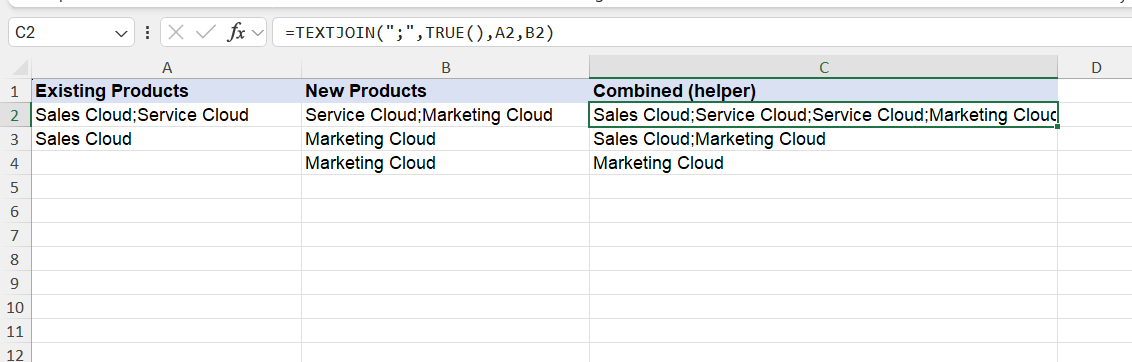
Export current values before updating records. In a spreadsheet helper column, combine existing and new selections:
=TEXTJOIN(“;”,TRUE,A2,B2)
Here, A2 contains existing products and B2 contains new products. TEXTJOIN is available in Excel 2019 and later, Microsoft 365, and Google Sheets. It does not remove duplicates.
CSV Format and Semicolons
Salesforce stores multi-select picklist values as a semicolon-separated string, such as Sales;Service;Marketing.
Excel uses your system’s list separator when saving CSV files. If your regional settings use semicolons, Excel may use them to separate columns, conflicting with the semicolons inside multi-select picklist values.
Value matching: Restricted picklists accept only valid configured values available for the record type. The Data Import Wizard replaces unmatched values with the default value. Data Loader returns an error when a value violates picklist restrictions. Unrestricted picklists can accept values that aren’t predefined.
Quick fix: Change your system’s list separator to a comma, then save the CSV again. This affects other applications. This workaround isn’t specific to Salesforce.
Workaround:
-
1
In Excel, replace semicolons inside multi-select picklist cells with a temporary symbol, such as #. Ensure the symbol doesn’t appear elsewhere in your data.
-
2
Save the spreadsheet as a CSV file.
-
3
Open the CSV in a text editor and replace the remaining semicolons with commas.
-
4
Replace every # with a semicolon to restore the multi-select picklist values.
-
5
Save the file and verify the column separators, values, and CSV quoting.
For a restricted picklist, an imported value that is not defined in the picklist can cause the row to fail. For an unrestricted picklist, Data Loader can accept values that are not defined in the picklist. Review the error file after importing and test both settings in a sandbox if needed.
Picklist changes shouldn’t take hours. Do them in minutes with XL-Connector.
Editing Multi-Select Picklist Values Without Losing Data
Before changing a multi-select picklist, check how the changes affect existing records, report filters, and automation.
Rename, Replace, and Delete Values
Renaming a picklist value changes its UI label. Keep its API name unchanged to avoid breaking formulas and code. Review report filters that use the old value.
Use Replace to update existing records with another value or a blank value.
To remove a value from picklist options while retaining it on existing records, deactivate it. You can reactivate it later.
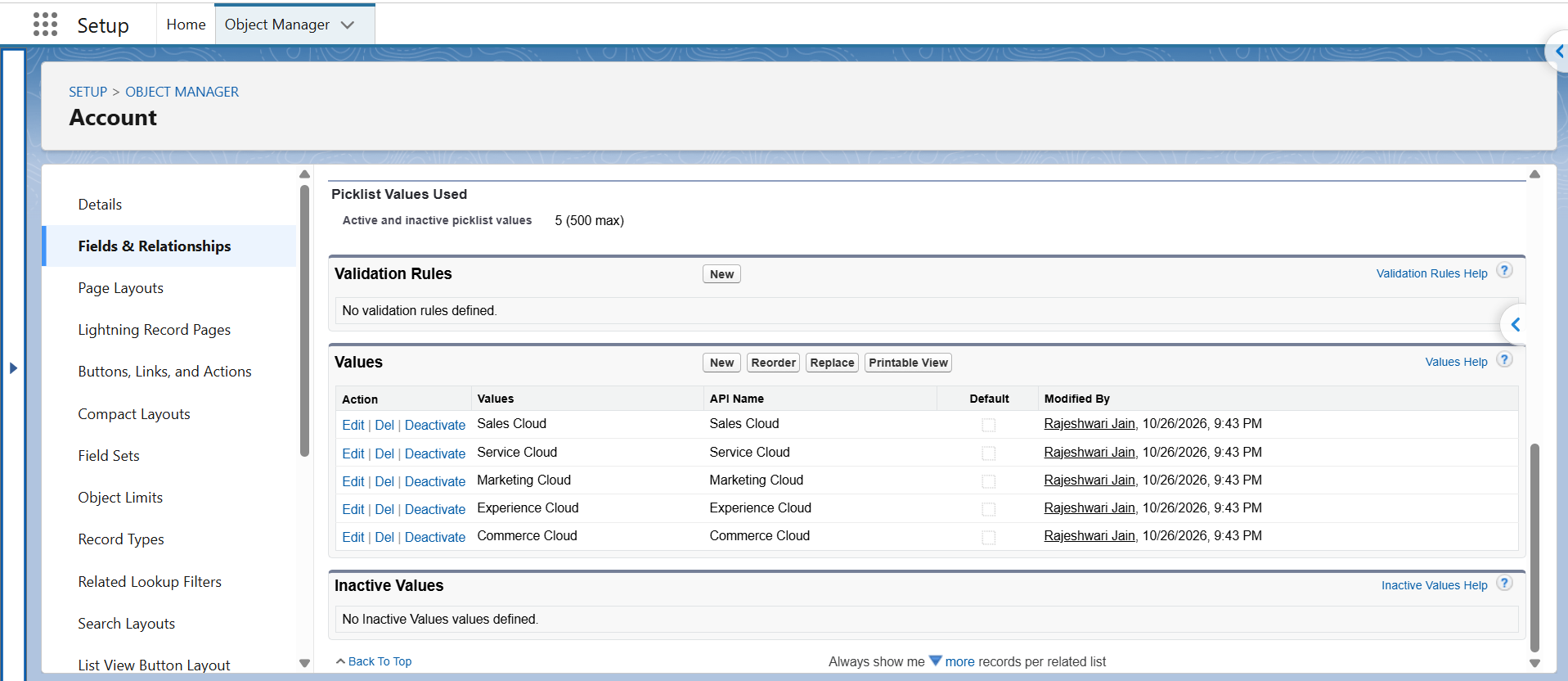
Deleting a value runs as a background job for global value sets and restricted picklists. Salesforce emails you when it finishes.
Replacing a controlling picklist value removes its existing dependency settings. Recreate the affected dependencies for the replacement value.
Convert to or from a Regular Picklist
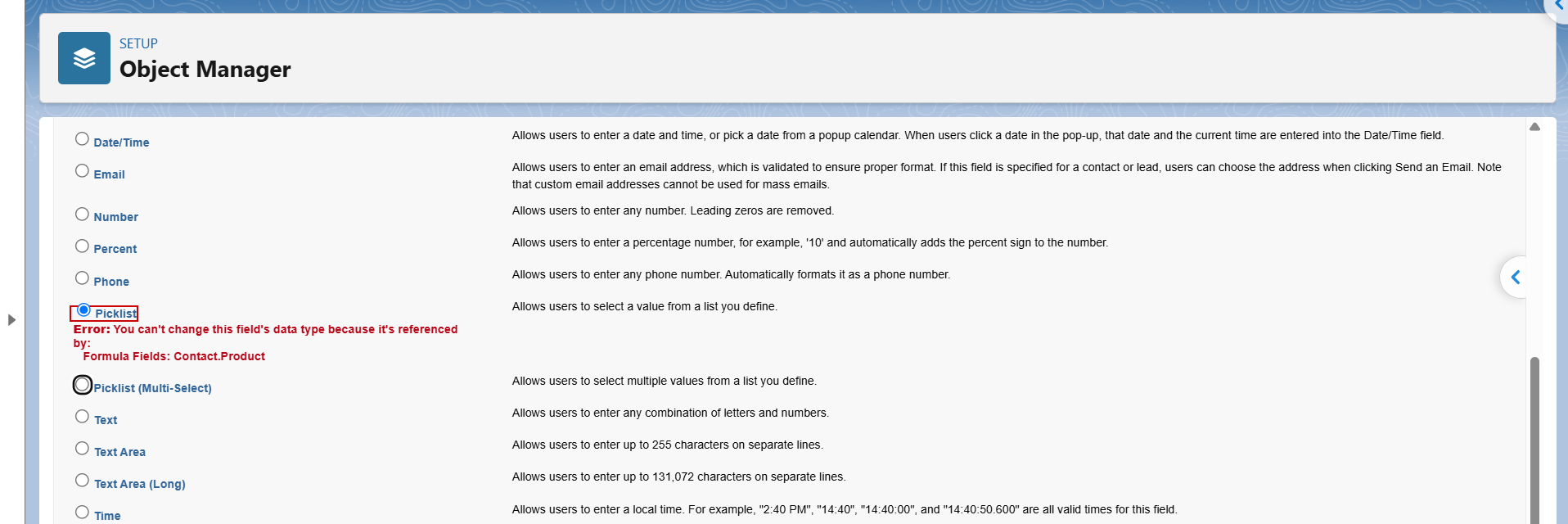
You can convert a custom single-select picklist to a multi-select picklist. When you convert a multi-select picklist to a single-select picklist, Salesforce clears the existing field values on records because the new field supports only one selection. Salesforce also warns that inactive values are lost when you change the field type.
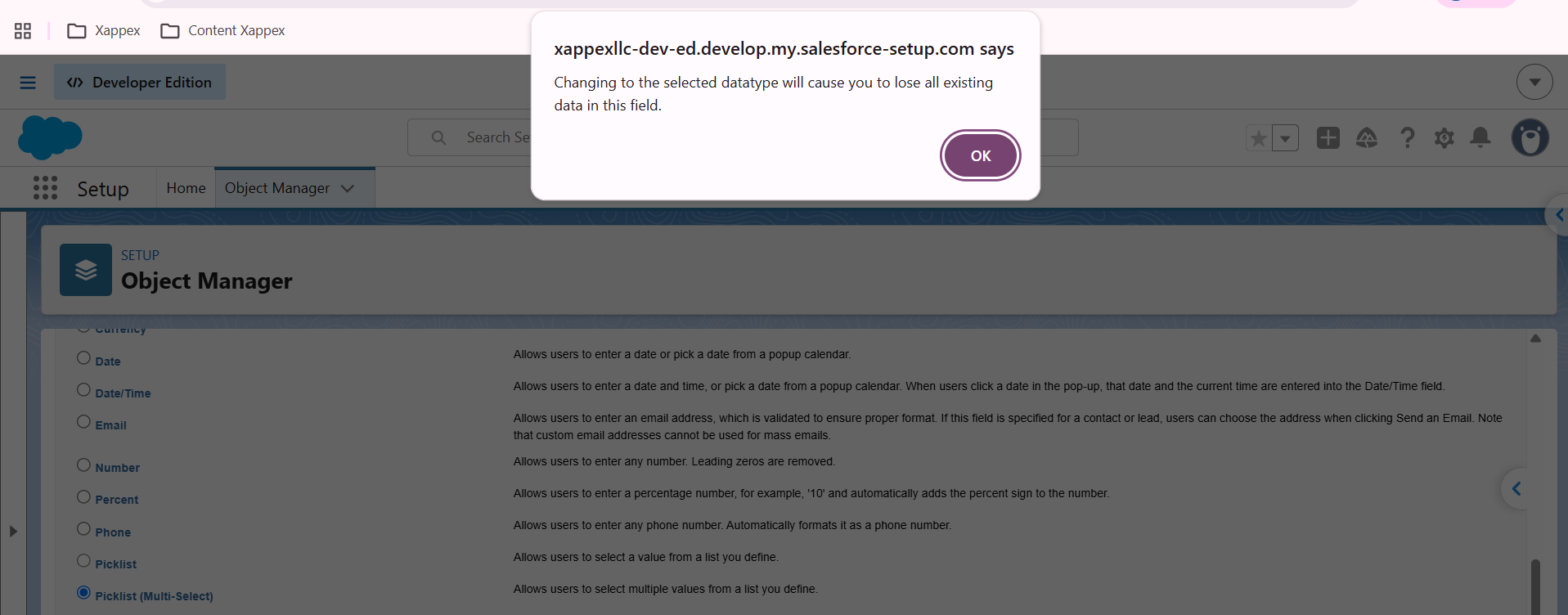
Test the conversion in a sandbox before changing a production field. Review the field’s dependencies and automation, and verify the resulting values before making the change in production.
Multi-Select Picklist Limitations
Multi-select picklists behave differently from regular picklists in reports, formulas, Flow, and data imports.
| Area | Limitation |
|---|---|
| Number of values | Custom multi-select picklists support up to 500 values, each up to 255 characters. Users can select up to 100 values at a time on a record. |
| Restricted picklists | A custom multi-select picklist can be made restricted only if it has fewer than 500 values. |
| Storage | Selected values are stored as a semicolon-separated list. |
| Reports | Reports display selected values as a semicolon-delimited string. Grouping by a multi-select picklist has limitations: groups are formed from combinations of selected values (for example, “Midwest;Southwest;Northwest;West”), not from individual values. |
| Formulas | Only certain formula fields support multi-select picklists. Workarounds exist, such as using INCLUDES() to copy a multi-select value from one record to another. |
| Flow | Flow can use a multi-select picklist, but you must parse the semicolon-delimited string to work with individual values. You can’t update a multi-select picklist by using the field update element. |
| Data imports | If an import includes only a new value, that becomes the only selected value on the record. Include the values to keep as well as the new ones. |
| API and duplicates | The UI checks that a value doesn’t already exist, but the API doesn’t. The same value can be stored more than once if it’s added from both the UI and the API. Add duplicate-check logic when adding values through the API. |
When to Use Something Else
Use a multi-select picklist when users need to select multiple values without analyzing them individually. Choose an alternative when you need more control over the data.
-
Count each value: Use a child object with one record per selected value to report and count individual selections.
-
Store details for each value: Use a child or junction object when each selection needs its own date, notes, or status.
-
Exceed the picklist value limit: Use a junction object to support a growing list of options.
-
Users select only one or two values: Use separate picklists with a shared Global Value Set. Dynamic Forms can display fields when needed.
Some teams retain the multi-select picklist for data entry and use a Salesforce Flow to sync selections with child records. The Flow must also handle deselected values.
Conclusion
A multi-select picklist stores multiple values in one field but behaves differently in reports, formulas, Flow, and imports. Use it for simple data entry when individual values rarely need analysis. Choose separate picklists or related records when you need value-level reporting or additional details.
FAQ
Can a multi-select picklist be required?
Yes. You can make a custom multi-select picklist required when creating or editing the field. Use a validation rule if the requirement depends on specific conditions.
Can I add a multi-select picklist to a compact layout?
No. Salesforce compact layouts don't support multi-select picklist fields.
Can a multi-select picklist be a dependent picklist?
Yes. A multi-select picklist can be a dependent field, but not a controlling field. You can control its available values using a picklist or checkbox field on the same record.

Rajeshwari Jain
Content Manager
Rajeshwari Jain is a Technical Support Specialist and Content Writer at Xappex. She applies her practical experience to assist customers and create articles on how Xappex tools work with Salesforce to improve data management and increase efficiency.
She began her IT career in 2022 as a Quality Assurance professional before transitioning into Salesforce administration and technical writing in 2023. With Salesforce Certified Administrator and Associate certifications, Rajeshwari writes blogs on Salesforce flows, admin tools, and updates to expand her skills outside of work.
In her free time, she enjoys reading tech blogs and experimenting with new tools.
Feel free to reach out to Rajeshwari for collaborations or to check out her Salesforce-focused content.