
 Get Started Free



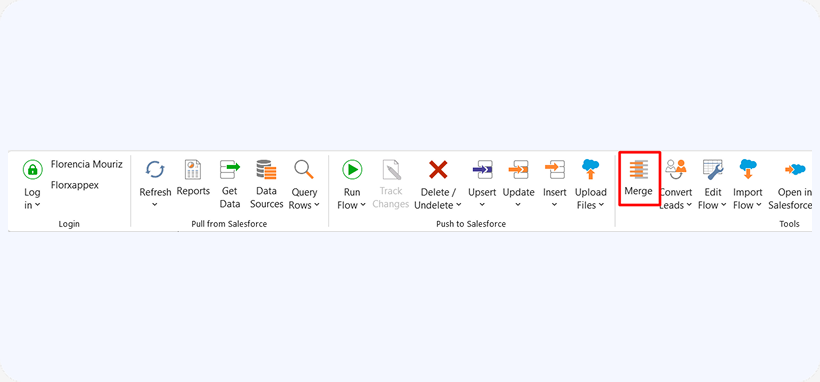
This functionality is available only in XL-Connector Enterprise Admin where you will see the Merge button in the ribbon:
Merging Records
-
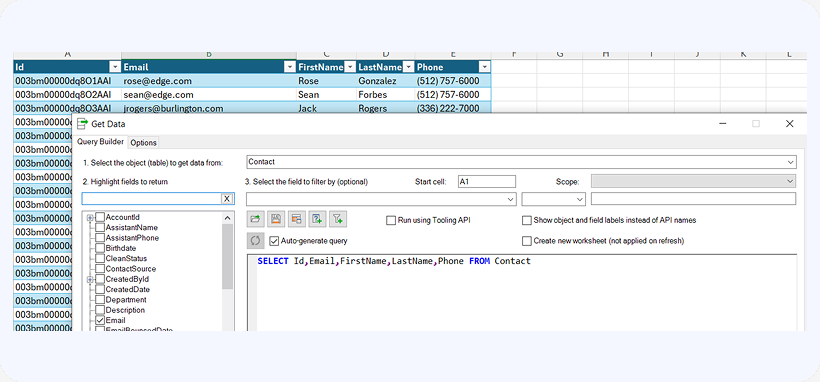
Before merging, you will need to pull the data from salesforce. We chose to demonstrate how to merge Contacts, but it works exactly the same for Accounts and Leads. To pull data from Salesforce, click Get Data and specify your query. You can also use the Reports button. In both cases please make sure that you pull the Id column, it is required to be able to merge records.

-
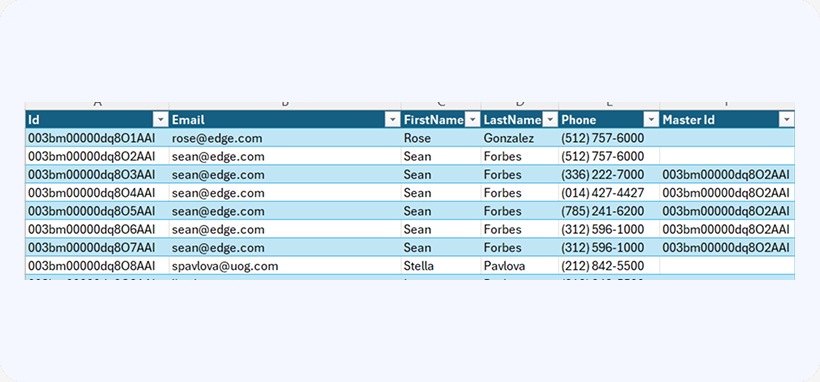
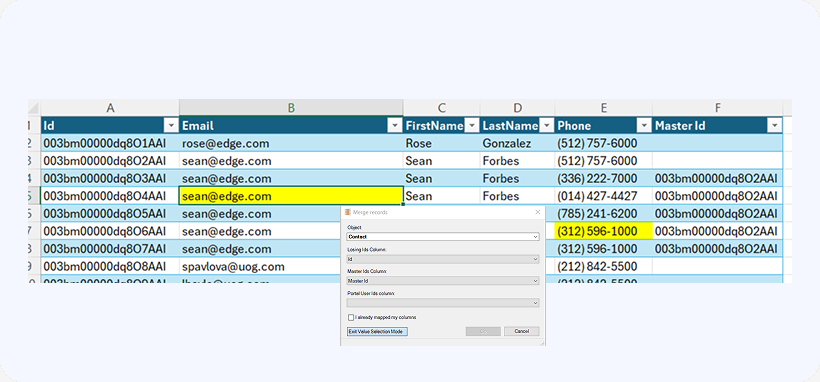
You’ll need to manually add a column to your data that will contain Master Ids, then populate it with the Ids of records each of the merged records will be merged into:
-
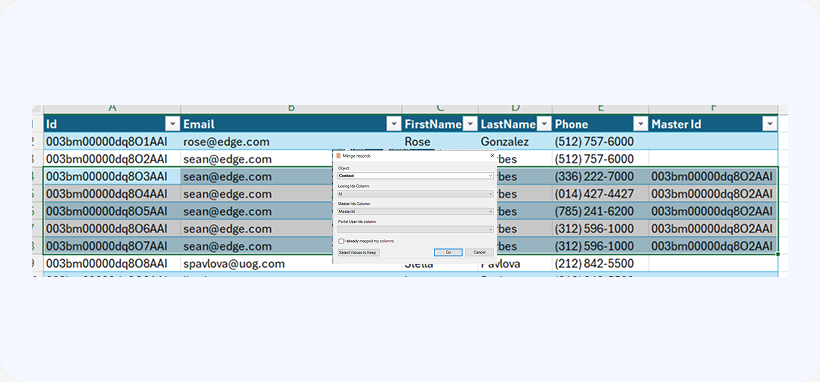
To merge multiple records you will need to select them so that your selection spans across the required rows and click the Merge button up in the XL-Connector ribbon:
-
In the Merge dialog box you only need to specify which column contains the losing record Ids and which column contains the master record Ids.
-
At this point you are ready to merge the selected records. If you need to keep some of the values (copy the value from a record being merged to the same field on the master record), you can use the Select Values to Keep button and highlight the values you want to keep on the master record:
-
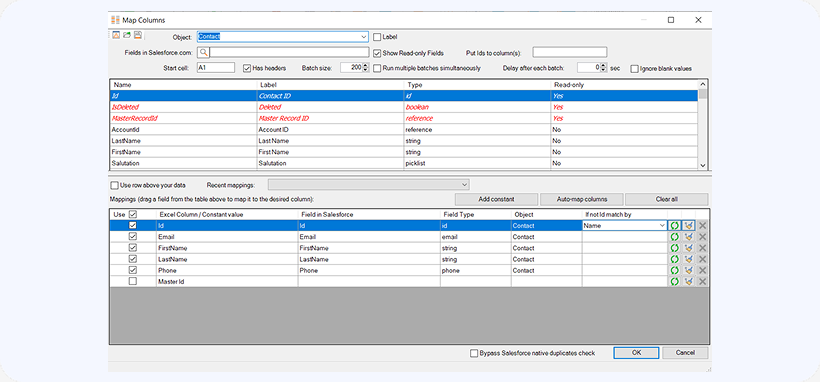
Now click Go, you’ll need to map the Id column and the columns containing values that you want to keep in the next dialog box. You have to make sure the column mappings are correct. This shouldn’t be an issue if you pulled the data using a SOQL Query, but if the data came from somewhere else, your column mappings may not be picked up automatically.
-
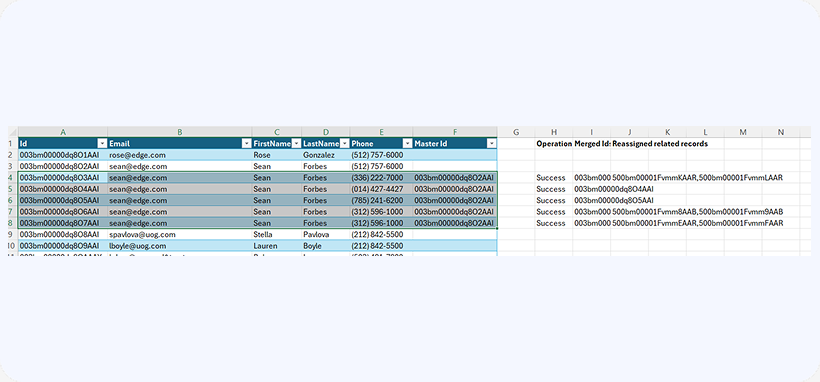
Click OK in the Mappings dialog and the selected records will be merged to the Master record(s) from the Master Id column. The merge result, and Ids of the moved related objects (if any) will be placed next to each row to the right from your data.
-
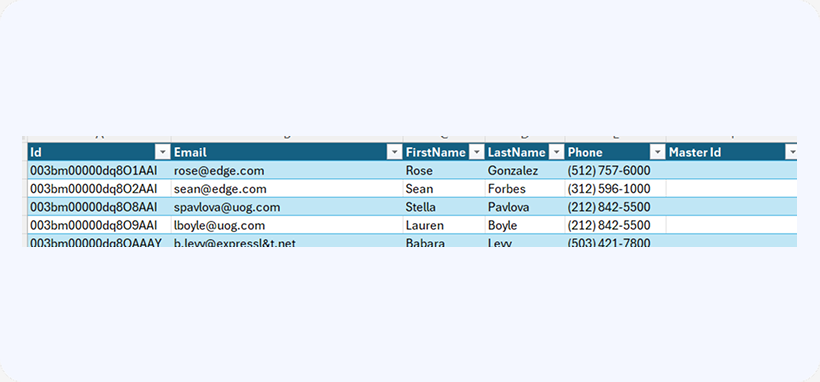
It is not possible to automatically delete the merged records from the spreadsheet so you’ll need to click the Refresh button up in the ribbon to get the actual dataset back.
Read all about mass managing duplicates in our blog: https://www.xappex.com/blog/salesforce-duplicate-management/

